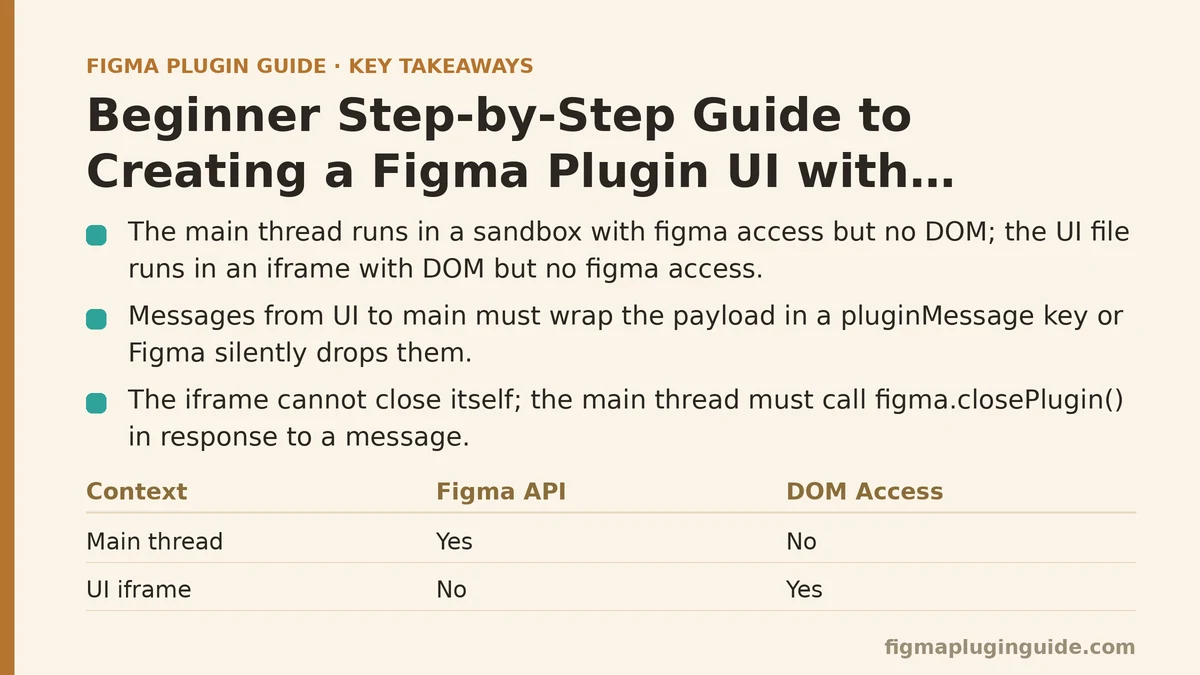
The main thread and the ui iframe are not the same JavaScript context, and treating them as one is the single most common reason a first Figma plugin fails to render anything. The main file runs in a sandbox with access to the figma global but no DOM. The ui file runs in a browser iframe with a full DOM but no figma access. They communicate through postMessage, and every piece of UI code you write has to respect that boundary.
Setting Up the Plugin Skeleton
Start with a manifest that declares both files. The main field points to the code that talks to Figma’s API. The ui field points to the HTML document that renders inside the plugin window.
{
  "name": "Layer Counter",
  "id": "000000000000000000",
  "api": "1.0.0",
  "main": "dist/code.js",
  "ui": "dist/ui.html",
  "editorType": ["figma"],
  "networkAccess": {
    "allowedDomains": ["none"]
  }
}
The plugin covered for the rest of this guide is a layer counter with a collapsible panel. It reads the current page’s selection, counts the descendants of each selected node, and displays the result in a styled list. Small enough to build in one sitting, structured enough to show every piece of the iframe pattern.
Create the project structure before writing any code:
mkdir layer-counter && cd layer-counter
npm init -y
npm install --save-dev typescript esbuild @figma/plugin-typings
mkdir src dist
The networkAccess field defaults to "none", which means the plugin cannot fetch external resources. That constraint matters later when you’re tempted to load a web font or a CDN-hosted CSS library. In most cases, inlining is the correct answer.
Writing the Main Thread Code
The main file is where figma.showUI gets called. This function accepts either a path to an HTML file or an HTML string, and the second argument sets the initial window dimensions.
// src/code.ts
figma.showUI(__html__, { width: 320, height: 480, themeColors: true });

figma.ui.onmessage = (msg) => {
  if (msg.type === 'count-layers') {
    const selection = figma.currentPage.selection;
    const report = selection.map((node) => ({
      id: node.id,
      name: node.name,
      count: countDescendants(node),
    }));
    figma.ui.postMessage({ type: 'layer-counts', payload: report });
  }

  if (msg.type === 'close-plugin') {
    figma.closePlugin();
  }
};

function countDescendants(node: SceneNode): number {
  if (!('children' in node)) return 0;
  return node.children.reduce(
    (total, child) => total + 1 + countDescendants(child),
    0
  );
}
Three things in this file are easy to get wrong:
The __html__ variable. When you pass an HTML file path to figma.showUI, the build process injects the file’s contents into a special __html__ global that exists only inside the plugin sandbox. If you’re using a bundler that doesn’t understand this, the reference resolves to undefined and showUI throws a confusing error about an invalid argument. The fix is a plugin or loader that inlines the HTML at build time — esbuild handles this cleanly with a small custom plugin, or you can write it manually with fs.readFileSync in your build script.
The message handler is async by nature. figma.ui.onmessage fires whenever the iframe calls parent.postMessage. There is no return value — the main thread can only respond by posting another message back. Any code expecting a synchronous request/response pattern between the two contexts will not work.
closePlugin is not optional. If your UI has a close button, it needs to tell the main thread to call figma.closePlugin(). The iframe cannot close itself. Without this, clicking the close button does nothing visible, which is confusing during testing.
Writing the UI File
The UI is a standard HTML document with inline CSS and a script block. The only Figma-specific detail is the parent.postMessage call that sends data to the main thread.
<!-- src/ui.html -->
<!DOCTYPE html>
<html>
<head>
<style>
:root {
--bg: #ffffff;
--fg: #1a1a1a;
--border: #e5e5e5;
--accent: #0d99ff;
}
@media (prefers-color-scheme: dark) {
:root {
--bg: #2c2c2c;
--fg: #ffffff;
--border: #444444;
--accent: #0d99ff;
}
}
body {
margin: 0;
padding: 12px;
font-family: Inter, system-ui, sans-serif;
font-size: 11px;
background: var(--bg);
color: var(--fg);
}
.header {
display: flex;
justify-content: space-between;
align-items: center;
margin-bottom: 12px;
}
button {
background: var(--accent);
color: white;
border: none;
border-radius: 6px;
padding: 8px 12px;
font-size: 11px;
cursor: pointer;
}
button:hover { opacity: 0.9; }
.layer-row {
display: flex;
justify-content: space-between;
padding: 8px;
border-bottom: 1px solid var(--border);
}
.layer-name {
overflow: hidden;
text-overflow: ellipsis;
white-space: nowrap;
max-width: 180px;
}
.layer-count {
color: var(--accent);
font-weight: 600;
}
</style>
</head>
<body>
<div class="header">
<strong>Selected layers</strong>
<button id="close">Close</button>
</div>
<div id="results"></div>
<button id="count" style="width:100%; margin-top:12px;">Count layers</button>
<script>
const results = document.getElementById('results');
document.getElementById('count').onclick = () => {
parent.postMessage({ pluginMessage: { type: 'count-layers' } }, '*');
};
document.getElementById('close').onclick = () => {
parent.postMessage({ pluginMessage: { type: 'close-plugin' } }, '*');
};
onmessage = (event) => {
const msg = event.data.pluginMessage;
if (!msg) return;
if (msg.type === 'layer-counts') {
render(msg.payload);
}
};
function render(rows) {
if (!rows.length) {
results.innerHTML = '<div style="color:#888;">Nothing selected</div>';
return;
}
results.innerHTML = rows.map((r) =>
`<div class="layer-row">
<span class="layer-name">${escapeHtml(r.name)}</span>
<span class="layer-count">${r.count}</span>
</div>`
).join('');
}
function escapeHtml(str) {
return str.replace(/[&<>"']/g, (c) => ({
'&': '&', '<': '<', '>': '>',
'"': '"', "'": '''
}[c]));
}
</script>
</body>
</html>
The pluginMessage property is mandatory when sending from UI to main. Messages sent without wrapping the payload in a pluginMessage key are silently dropped by Figma’s runtime. There is no error, no console warning, nothing. The handler in the main thread simply never fires. This is the single most common debugging trap for first-time plugin authors, and it produces no diagnostic information.
Direct property assignment for event handlers works but scales poorly. onclick = function runs in the iframe and only affects this plugin’s markup, so the pattern is safe here. For larger UIs with dynamically created elements, use addEventListener and delegate from a stable parent, otherwise rebuild-on-rerender will lose the handlers.
Escape user-controlled strings before injecting them into innerHTML. Layer names come from the document and can contain any characters the user typed. The escapeHtml helper above is the minimum viable protection. For a plugin that renders only trusted data, this may feel unnecessary — but the pattern costs nothing and prevents a class of bug where a layer named <script> breaks the entire UI.
Wiring the Build
The two source files need to be bundled into dist/. esbuild covers both, but the HTML file needs a small custom step because esbuild does not inline HTML into JavaScript by default.
// build.mjs
import * as esbuild from 'esbuild';
import { readFile, writeFile, mkdir } from 'node:fs/promises';

await mkdir('dist', { recursive: true });

const htmlPlugin = {
  name: 'html-inline',
  setup(build) {
    build.onResolve({ filter: /\.html$/ }, (args) => ({
      path: args.path,
      namespace: 'html',
    }));
    build.onLoad({ filter: /.*/, namespace: 'html' }, async (args) => {
      const contents = await readFile(args.path, 'utf-8');
      return {
        contents: `export default ${JSON.stringify(contents)}`,
        loader: 'js',
      };
    });
  },
};

await esbuild.build({
  entryPoints: ['src/code.ts'],
  bundle: true,
  outfile: 'dist/code.js',
  target: 'es2020',
  plugins: [htmlPlugin],
  define: {
    __html__: 'uiHtml',
  },
});
Wait — this approach requires importing the HTML explicitly in code.ts. A simpler pattern that avoids the define configuration is to import the file as a string:
import uiHtml from './ui.html';
figma.showUI(uiHtml, { width: 320, height: 480, themeColors: true });
With the esbuild plugin above, this resolves at build time and inlines the full HTML into the bundle. The dist/ui.html entry in the manifest becomes optional once the HTML is inlined, but keeping it satisfies validation tools that expect the file to exist.
Verify the build before opening Figma. Run npm run build and confirm dist/code.js contains the HTML body text. If the bundle is only a few hundred bytes, the plugin import failed silently and the UI will render blank.
Testing Inside Figma
Load the plugin through the desktop app: Plugins → Development → Import plugin from manifest. Select the manifest.json. The plugin appears in the development section of the plugin menu and reloads on every invocation, so code changes to code.js show up immediately after a rebuild — no re-import needed.
The verification loop for this plugin:
- Select a frame with nested children in the canvas.
- Open the plugin from the development menu.
- Click Count layers.
- Confirm the list shows each selected node with its descendant count.
- Toggle Figma’s theme (Settings → Appearance) and confirm the UI colors swap without reload.
That last check matters because theme detection depends entirely on the CSS media query. Figma’s plugin iframe reports the current theme through prefers-color-scheme, so no JavaScript and no message passing is needed — provided you wrote the media query. Plugins that skip it render a white panel inside a dark Figma window, which looks broken to anyone using dark mode.
When This Approach Breaks Down
The inline HTML plus postMessage pattern is sufficient for the vast majority of plugins, but there are three cases where it stops being the right tool:
Complex stateful UIs. A plugin with a multi-step wizard, undo history, or a data table with sorting needs a real UI framework. React inside the iframe works fine, but the build configuration grows to include a JSX loader and a way to inline the bundled JavaScript into the HTML output. At that point, a plugin template like create-figma-plugin saves more time than building the setup manually.
Large lists of data. Every message sent through postMessage is serialized as a structured clone. Passing ten thousand rows of layer data between the two contexts takes measurable time and can block the UI thread. If your plugin works with that much data, compute on the main thread and send only the visible slice to the UI, or paginate the results.
Shared code with the main thread. Utilities used by both code.ts and the UI script cannot be imported by both without duplicating the module into each bundle. If the shared code is small, duplicating it is fine. If it’s substantial, factor it into a package and let both bundle entries import it independently — but understand that the two copies are separate instances with separate state.
The Iteration Loop That Works
The pattern that keeps plugin UI development fast is to treat the boundary between main and ui as the contract. Design the messages first — their names, their payload shapes, and what triggers each direction — then implement each side against that contract independently. When something renders wrong, the question narrows immediately: is this a rendering bug in the UI, or a data bug in what the main thread sent?
Log both sides during development. The main thread’s console.log output appears in Figma’s plugin console, accessible from Plugins → Development → Open console. The UI’s console.log output appears in the same console, prefixed differently. Being able to see both message streams side by side cuts debugging time in half.
Once the counter plugin renders correctly and responds to selection changes, the same structure transfers to anything more complex. Build the message contract first, wire each side to it, and the iframe boundary stops being a source of confusion and becomes the part of the architecture you can reason about most reliably.
Related guides: A Beginner’s Guide to Building Your First Figma Plugin from Scratch, Choosing a UI Framework for Your Figma Plugin: React vs Svelte, and Debugging Figma Plugin Errors with the Browser Console: A Beginner and Advanced Guide.