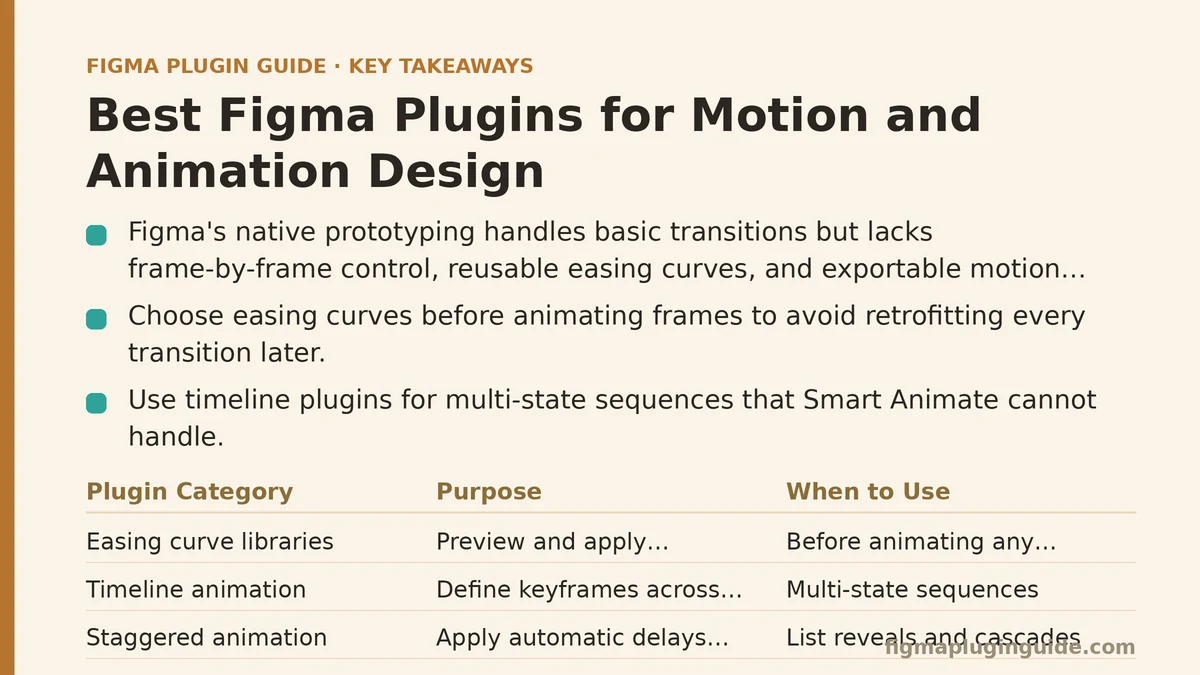
Motion design, in the context of Figma, means defining how elements enter, transition, and exit a screen over time — easing curves, duration, sequencing, and the handoff of that timing information to developers. Figma’s native prototyping supports basic transitions between frames, but it stops well short of frame-by-frame animation control, reusable easing curves, or exportable motion specs. That gap is precisely what motion-focused plugins exist to fill.
This post walks through the plugin categories in the order you’d actually reach for them: from early timing exploration through to final developer handoff.
Step 1: Establish Easing and Timing Before Touching Any Frames
Before animating anything specific, decide what your motion should feel like. Plugins built around easing curve libraries let you preview and apply standardized cubic-bezier curves — ease-in-out, spring-based curves, or custom-defined ones — directly to prototype transitions, rather than guessing at values or trial-and-error testing default presets.
Why this step comes first: Applying a curve after you’ve already built out a dozen transitions means retrofitting every one of them if the curve doesn’t feel right. Settling on a small set of approved easing curves at the start, ideally matched to whatever your engineering team’s animation library already supports, saves rework later and keeps the eventual handoff consistent across the whole file.
Step 2: Build Multi-State Animations With Dedicated Timeline Plugins
Figma’s Smart Animate handles transitions between two frames reasonably well, but sequences involving more than two states — a loading spinner, a multi-step onboarding animation, a staggered list reveal — need something closer to a real timeline. Timeline-based animation plugins let you define keyframes across multiple layers and preview the full sequence inside Figma before it ever reaches a prototype link.
This category matters most for interactions that unfold over several distinct beats rather than a single A-to-B transition. Trying to fake that sequencing with chained prototype frames alone tends to produce janky, hard-to-adjust results once a stakeholder asks for a small timing tweak.
Best for: Multi-step animations, staggered reveals, and looping micro-interactions where a simple two-frame transition can’t capture the full sequence.
Step 3: Add Staggered and Layer-Based Animation Effects
A specific subcategory worth calling out separately: plugins that apply staggered delays across a group of layers automatically, rather than requiring you to manually offset the timing of each one. Think a list of cards fading in one after another, or icons in a grid animating in with a slight cascade.
Manually setting incremental delay values across fifteen or twenty layers is exactly the kind of repetitive task a plugin should own. These tools typically let you set a base delay and increment, then apply it across a selection in one pass — turning what would be a tedious manual process into a configuration step that takes seconds.
Step 4: Preview Motion Realistically Before Sign-Off
A prototype link previewed inside the Figma browser tab often behaves differently from how the same animation performs on an actual device, particularly around frame rate and touch-triggered transitions. Plugins that generate shareable, device-accurate previews — or that record the prototype interaction as a video file — solve a specific problem: getting stakeholder sign-off on how the motion feels, not just how the static frames look.
This step tends to get skipped under deadline pressure, and it shouldn’t. Motion that reads as smooth in a desktop preview can feel abrupt or laggy on a mid-range phone, and catching that mismatch before development starts is far cheaper than catching it after.
Best for: Client and stakeholder review cycles where sign-off needs to reflect actual on-device motion behavior rather than an approximation.
Step 5: Export Motion Specs for Developer Handoff
Once the animation is approved, developers need concrete numbers: duration in milliseconds, easing curve values, delay timing, and which properties are animating. Plugins built specifically for motion handoff generate this documentation automatically from your prototype settings, rather than requiring a designer to write it all out by hand or, worse, leaving developers to reverse-engineer timing by eyeballing a video.
This is the step most frequently shortchanged on real projects, and it’s the one most likely to produce a mismatch between the approved design and the shipped implementation. A generated spec — even a simple one listing property, duration, and curve per transition — closes that gap far more reliably than a Slack message describing the animation in prose.
Step 6: Export Animated Assets Directly When Full Handoff Specs Aren’t Needed
Not every animation needs a full engineering handoff. Looping brand animations, animated icons, or simple micro-interactions sometimes just need to ship as a Lottie file or animated GIF/video asset rather than being rebuilt in code from a spec. Plugins that export directly to these formats skip the handoff-documentation step entirely and hand developers something they can drop straight into the product.
Best for: Self-contained animated assets — loading states, animated icons, decorative loops — where implementing from a Lottie export is simpler than rebuilding the animation from timing values.
Putting the Steps Together: A Quick Reference
| Step | Plugin Category | Primary Output |
|---|---|---|
| 1 | Easing curve libraries | Standardized, reusable timing curves |
| 2 | Timeline-based animation tools | Multi-state, multi-keyframe sequences |
| 3 | Staggered layer animation tools | Automated cascading delays across layers |
| 4 | Device-accurate preview tools | Realistic stakeholder review material |
| 5 | Motion spec export tools | Developer-ready timing documentation |
| 6 | Animated asset export (Lottie/GIF) | Ready-to-ship self-contained assets |
Choosing Where to Start Based on Your Current Bottleneck
If your team’s biggest recurring issue is inconsistent easing across the file, start at Step 1 and don’t move past it until a small set of approved curves is documented somewhere everyone can reference. If the bottleneck is instead developers rebuilding animations that don’t match the approved design, the fix lives at Step 5 — a proper spec export, not a better verbal description.
Not every project needs all six steps. A simple hover-state transition doesn’t require timeline tooling or spec export; a complex onboarding sequence probably needs most of them. Match the step to the complexity of the animation in front of you rather than applying the full workflow uniformly.
Which step in this sequence is causing the most friction in your current motion design process? Describe where the breakdown happens and I can help narrow down which plugin category addresses it directly.
Related guides: Best Figma Plugins for AI Design Automation, Best Figma Plugins for Icon Design and Management, and Best Figma Plugins for UI Design in 2026.