Say you are trying to keep a design file’s status visible without asking everyone to leave Figma and update a separate tracking tool. A small widget that lists each teammate, their current task, and a status flag solves that in a single canvas element that anyone with edit access can update in place. This tutorial walks through building one from an empty folder to a working widget, in the order you would build it.
The widget described here is deliberately minimal: a header, a list of status rows, and an editor panel that lets a user change a row’s name, task, and status. Everything is stored in synced widget state, which means the values persist inside the .fig file and stay consistent for anyone viewing the widget.
Prerequisites Before You Write Any Code
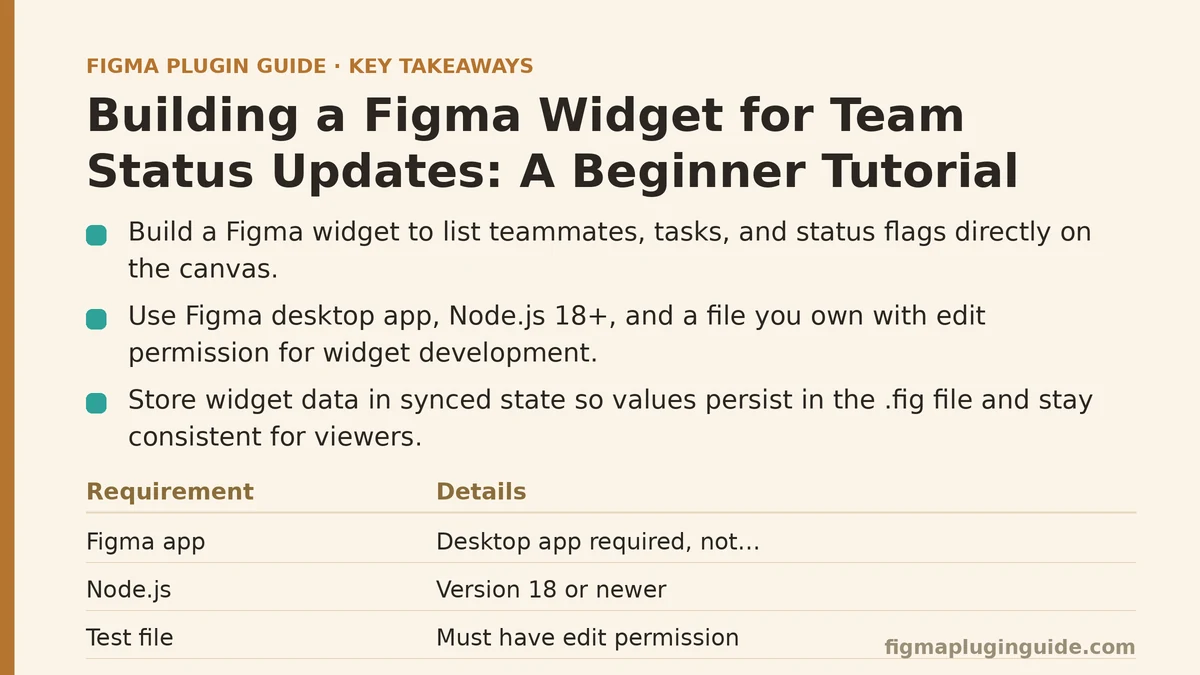
Before starting, confirm you have three things in place. Skipping any of them is the most common reason a first widget attempt stalls at the first import.
- Figma desktop app — the widget development environment runs locally through the desktop app, not the browser client.
- Node.js 18 or newer — the widget bundler and TypeScript compilation depend on a modern Node runtime.
- A test file you own — widgets can only be imported into files where you have edit permission, and development widgets appear in a separate “Development” section of the widgets menu.
You do not need a Figma plugin published to the Community to test a widget. Development widgets load from your local filesystem through a manifest, which is what the next step creates.
Step 1: Scaffold the Project and Manifest
Create a folder and initialize it. A widget project needs at minimum a manifest, an entry file, and a bundler.
mkdir team-status-widget && cd team-status-widget
npm init -y
npm install --save-dev @figma/widget-typings typescript esbuild
Now create manifest.json. The widget manifest is a distinct schema from the plugin manifest — the containsWidget key and the api version field are what tell Figma this is a widget rather than a plugin.
{
  "name": "Team Status Board",
  "id": "1234567890123456789",
  "api": "1.0.0",
  "main": "dist/code.js",
  "ui": "dist/ui.js",
  "editorType": ["figma"],
  "containsWidget": true,
  "widgetApi": "1.0.0",
  "networkAccess": {
    "allowedDomains": ["none"]
  }
}
Two fields deserve attention. containsWidget: true is mandatory; without it Figma treats the bundle as a plugin and the widget import fails with a generic “invalid manifest” message. The id value is assigned by Figma the first time you register the widget — for local development you can use any unique numeric string, but it must be a string of digits, not a UUID.
Create a tsconfig.json that points the compiler at the widget typings:
{
  "compilerOptions": {
    "target": "ES2017",
    "module": "ESNext",
    "moduleResolution": "node",
    "types": ["@figma/widget-typings"],
    "strict": true,
    "outDir": "dist"
  },
  "include": ["src"]
}
Step 2: Write the Widget Entry File
Create src/main.tsx. The widget API is a React-like declarative model: you return a component tree built from Widget, Text, SVG, and Input, and Figma renders it inside the canvas node. There is no DOM, no CSS files, and no browser APIs — layout is driven entirely by the components and their spacing, padding, and alignment props.
const { widget } = figma;
const { AutoLayout, Text, Input, useSyncedState, usePropertyMenu } = widget;

type Status = "on-track" | "blocked" | "review";

interface Row {
  id: string;
  name: string;
  task: string;
  status: Status;
}

const STATUS_COLORS: Record<Status, string> = {
  "on-track": "#1F9D55",
  "blocked": "#D93025",
  "review": "#F5A623",
};

function StatusRow({ row, onEdit }: { row: Row; onEdit: (r: Row) => void }) {
  return (
    <AutoLayout direction="horizontal" spacing={8} padding={8} verticalAlignItems="center">
      <AutoLayout
        width={10}
        height={10}
        cornerRadius={5}
        fill={STATUS_COLORS[row.status]}
      />
      <Text width={110} fontSize={12} fontWeight={600}>
        {row.name}
      </Text>
      <Text width={180} fontSize={12} fill="#555">
        {row.task || "No task set"}
      </Text>
    </AutoLayout>
  );
}

function TeamStatusWidget() {
  const [rows, setRows] = useSyncedState<Row[]>("rows", [
    { id: "1", name: "Designer", task: "Homepage redesign", status: "on-track" },
    { id: "2", name: "Engineer", task: "Component audit", status: "review" },
  ]);

  usePropertyMenu(
    [
      {
        itemType: "action",
        propertyName: "add-row",
        tooltip: "Add a status row",
      },
    ],
    ({ propertyName }) => {
      if (propertyName === "add-row") {
        setRows([
          ...rows,
          { id: String(Date.now()), name: "New member", task: "", status: "on-track" },
        ]);
      }
    }
  );

  return (
    <AutoLayout
      direction="vertical"
      spacing={4}
      padding={16}
      cornerRadius={8}
      fill="#FFFFFF"
      stroke="#E5E7EB"
      effect={{ type: "drop-shadow", color: "#00000022", offset: { x: 0, y: 2 }, blur: 6 }}
    >
      <Text fontSize={14} fontWeight={700}>
        Team Status
      </Text>
      {rows.map((row) => (
        <StatusRow key={row.id} row={row} onEdit={() => { /* handled in editor */ }} />
      ))}
    </AutoLayout>
  );
}

widget.register(TeamStatusWidget);
The useSyncedState hook is the core of the widget’s persistence model. Every value stored this way is written into the widget node itself and synchronized to anyone viewing the file. That has a specific consequence worth understanding early: synced state travels with the document, not the machine, so two viewers of the same file see the same rows.
Step 3: Build and Import into Figma
Add a build script to package.json:
{
  "scripts": {
    "build": "esbuild src/main.tsx --bundle --outfile=dist/code.js --format=iife --target=es2017",
    "watch": "esbuild src/main.tsx --bundle --outfile=dist/code.js --format=iife --target=es2017 --watch"
  }
}
Run npm run build, then in the Figma desktop app go to Menu → Widgets → Development → Import widget from manifest. Select your manifest.json. The widget appears in the Development submenu of the widget picker.
At this point you can drag the widget onto the canvas and see the two starter rows render. The color dot, name, and task text should all appear inside a bordered card. If the widget imports but renders a blank square, the usual cause is a thrown error inside the component — widgets fail silently and show an empty frame rather than crashing visibly, so check the developer console first.
Step 4: Add an Editor UI for Changing Rows
The canvas render above is read-mostly. To let a user edit a row’s task and status, the widget needs a UI mode triggered by a double-click. Add ui to the manifest (already present), create src/ui.tsx, and wire an onEdit handler that opens the UI with figma.showUI.
// src/ui.tsx — runs in an iframe, has DOM access
const root = document.getElementById("root")!;

window.onmessage = (event) => {
  const msg = event.data.pluginMessage;
  if (msg?.type === "load-rows") {
    root.innerHTML = "";
    msg.rows.forEach((row: any) => {
      const input = document.createElement("input");
      input.value = row.task;
      input.placeholder = "Task";
      input.oninput = () => {
        parent.postMessage(
          { pluginMessage: { type: "update-task", id: row.id, task: input.value } },
          "*"
        );
      };
      root.appendChild(input);
    });
  }
};
The widget side listens with figma.ui.onmessage and calls setRows to propagate changes back to synced state. This editor round-trip is where most first implementations hit a snag: the pluginMessage object shape must match exactly on both sides, and any mismatch produces a silent no-op rather than a visible error.
Step 5: Verify the Result Across Viewers
Before treating the widget as working, confirm these four behaviors in order:
- Persistence — drag the widget, close the file, reopen it. The rows and their tasks should still be present.
- Sync — open the same file in a second browser tab with a second account (or share it with a test account). Edit a task in one window and confirm the other window updates.
- Property menu — right-click the widget and confirm “Add a status row” appears and appends a row.
- Read-only view — open the file in view-only mode and confirm the widget renders but the editor does not open.
That fourth check catches a class of bug that is easy to miss: code that calls figma.showUI without checking whether the current user has edit access will throw for viewers, and a thrown error blanks the widget for them.
Choosing What to Store in Synced State
Synced state is convenient but not free. Every key you add to a widget node increases the size of that node’s serialized data, and widgets with large state can slow down file loading when many copies exist. The table below summarizes the trade-off for the fields this widget uses.
| Field | Storage Location | Why |
|---|---|---|
| Row name | useSyncedState | Needs to persist and sync across viewers |
| Task text | useSyncedState | Same as above |
| Status flag | useSyncedState | Drives color rendering; must be shared |
| Editor open/closed | Local component state (useState) | Per-viewer; must not affect other viewers |
| Input focus | Local component state | Same as above |
| Historical row count | Not stored | Derivable from array length; storing it duplicates data |
The pattern: anything that should look identical to every viewer of the file belongs in synced state. Anything that reflects one person’s momentary interaction belongs in local useState. Mixing the two is a frequent source of confusion — a widget that opens its editor for every viewer at once, for example, results from putting an “editor visible” boolean into synced state by mistake.
When a Widget Is the Wrong Tool
A widget is a good fit when the data is naturally per-file and small. It is a poor fit in three situations, and recognizing them early saves a rebuild.
- Data needs to leave Figma. Widgets have no network access unless you declare allowed domains in the manifest, and even then the sync model is not designed for multi-user server-side state. If the status list needs to feed a project tracker, a plugin with an API integration is the better architecture.
- The dataset is large or rarely changes. A list of two hundred team members is wasteful as widget state; a link to an external board is cheaper and easier to maintain.
- Multiple instances must stay in sync. Each widget node holds its own synced state. Two copies of the status board on different pages will not share edits — they diverge independently. If you need a single source of truth across pages, use a plugin that reads from a shared file or API.
For the narrow case this tutorial targets — a small, per-file, human-maintained status board — the widget model is a good match precisely because it stays inside the document and requires no backend.
Common Failure Modes to Expect
Four issues account for most beginner difficulties with widgets, and each has a specific fix.
Blank widget after import. Usually a thrown error inside the component. Open the desktop console, re-run the build, and re-import. Widgets suppress the error UI on the canvas, so the console is the only source.
useSyncedState value resets. This happens when the widget’s id in manifest.json changes between builds. Synced state is keyed to the widget id; changing it makes Figma treat the widget as a new type and discard the old state. Keep the id stable once you have data you care about.
Editor doesn’t open on double-click. The widget needs an onEdit or a property-menu action wired to figma.showUI. If neither is present, the double-click is ignored.
Renders in desktop but not on import to a shared file. Confirm the manifest’s editorType includes "figma" and that the main field points to the built bundle, not the source file. Shipping a manifest pointing at src/main.tsx is a classic first-release error.
Where to Take It Next
The widget built here is a working foundation, not a finished product. Two extensions are worth building once the basics are solid. First, replace the free-text status input with a cycle button that rotates between the three states on click — it removes typos and makes the color coding reliable. Second, add a useStickable behavior if you want the widget to follow a page or frame, which keeps the status board visible as the canvas scrolls.
Keep the state schema small and stable. Every field you add to synced state is a field you must migrate if the widget’s data shape changes later, and widget state has no built-in versioning. Storing the current schema version as a synced number lets you write conditional logic on load and avoid breaking existing files.
Which extension matters more for your team — a one-click status cycle, or stickability so the board stays in view? Start with the one that removes the most manual typing, since that is the step most likely to be skipped during a busy week.