Say you are trying to get a brand-new Figma plugin running for the first time, and Figma keeps rejecting it with an error that just says something like “manifest is invalid” without telling you which field is the actual problem. You open the file, stare at a dozen or so key-value pairs, and none of them look obviously wrong. This is a common first roadblock in plugin development, and it usually comes down to not knowing what each field in manifest.json is actually for or which ones Figma treats as mandatory versus optional.
This post walks through manifest.json field by field, answering the questions that come up most when developers are setting one up or debugging one that’s misbehaving.
What Is manifest.json, and Why Does Every Plugin Need One?
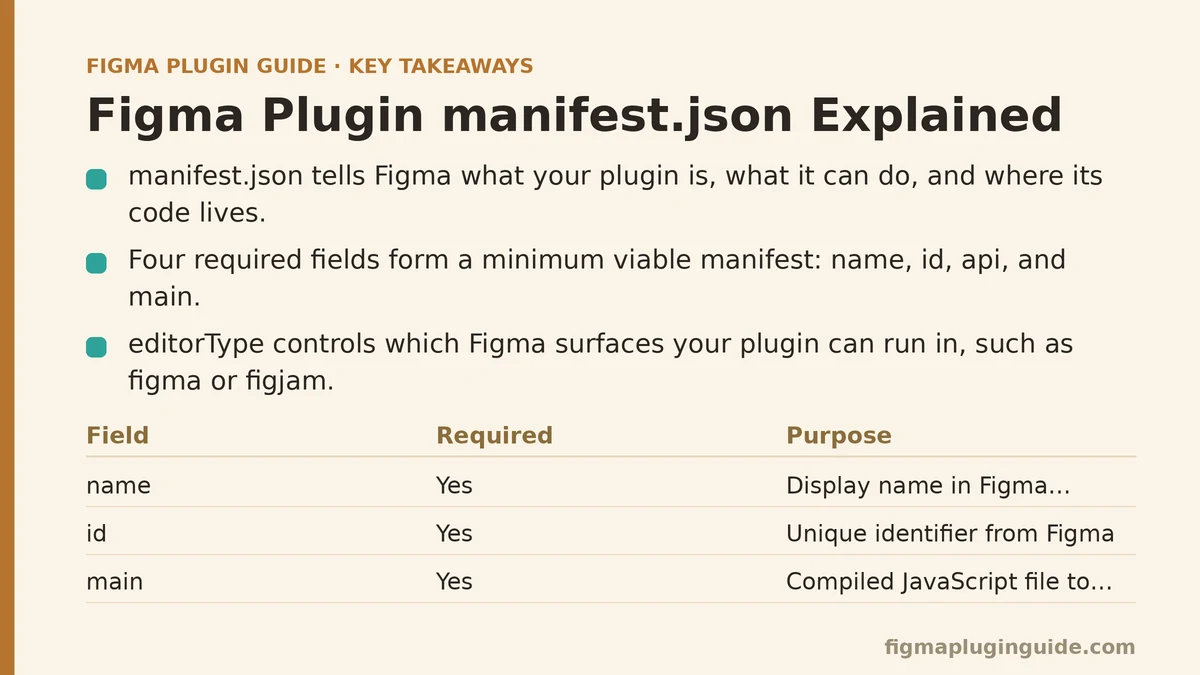
manifest.json is the configuration file that tells Figma what your plugin is, what it’s allowed to do, and where to find its code. Figma reads this file before it runs a single line of your plugin’s actual logic — it’s the entry point for everything from the plugin’s display name to which API permissions it’s requesting.
Without a valid manifest, Figma has no way to load your plugin at all. There’s no fallback behavior or partial loading state; the file either parses correctly and satisfies Figma’s required fields, or the plugin fails to load and you get an error pointing (sometimes vaguely) at the manifest itself.
Which Fields Are Actually Required?
Four fields form the minimum viable manifest: name, id, api, and main.
nameis the display name shown in Figma’s plugin menus and search results.idis a unique identifier assigned when you register the plugin through Figma’s developer console. You don’t invent this one yourself for published plugins — Figma issues it.apispecifies the Plugin API version your code targets, currently"1.0.0"for essentially all active plugins.mainpoints to the compiled JavaScript file Figma should execute — typically something like"code.js", the output of your build step, not your raw TypeScript source.
Leave any of these four out, and Figma won’t load the plugin at all. Every other field either has a sensible default or only matters for specific plugin capabilities you may not need.
What Does the editorType Field Control?
editorType is an array telling Figma which surfaces your plugin should be available in — most commonly ["figma"] for the design canvas, ["figjam"] for FigJam boards, or both together as ["figma", "figjam"] if your plugin works reasonably in either context.
This field trips people up because a plugin can technically load with the wrong editorType set, then behave strangely or throw runtime errors the moment it tries to call an API method that doesn’t exist in that editor context. FigJam and the design canvas don’t expose identical APIs, so a plugin built assuming design-canvas-only behavior needs to either restrict its editorType accordingly or add conditional logic that checks which environment it’s running in.
Why Does the permissions Field Matter More Than It Looks Like It Should?
Certain plugin capabilities — reading the current user’s identity, accessing the current file’s version history, or working with certain external network requests — require explicit entries in the permissions array. Figma gates these behind manifest declarations rather than letting any plugin request them silently at runtime.
The practical consequence: if your code calls figma.currentUser or attempts a fetch to a domain you haven’t declared, and the corresponding permission or allowed-domain entry is missing from the manifest, the call fails or returns unexpected null values instead of throwing an immediately obvious error at the point of the mistake. Debugging this after the fact, without knowing to check the manifest first, wastes far more time than it should.
What Is networkAccess, and Why Do So Many Plugins Get It Wrong?
networkAccess controls which external domains your plugin is permitted to make requests to, using allowedDomains as its core subfield. Any domain your plugin’s fetch calls hit — an API you’re pulling data from, a CDN serving assets — needs to appear here, or the request gets blocked at runtime regardless of how correctly your fetch code itself is written.
A common mistake is adding a domain during local development, testing successfully, then forgetting that a redirect or a secondary API endpoint used by the same feature lives on a different domain that was never added. The plugin works in one test case and silently fails in another, which makes this particular misconfiguration harder to catch than most.
Using "allowedDomains": ["*"] disables this restriction entirely, and while that’s fine for early prototyping, published plugins are generally better served by listing exact domains — it signals to reviewers and to your own future self exactly what the plugin talks to over the network.
What’s the Difference Between main and ui?
main points to the code that runs in Figma’s sandboxed plugin environment, with access to the Plugin API for reading and modifying the document. ui points to the HTML file that renders your plugin’s actual interface, if it has one — a separate iframe context without direct document access.
Plugins that only need to run a script against the current selection, with no visible interface at all, can omit ui entirely. Anything with a settings panel, form inputs, or a visual preview needs it, and needs to handle the somewhat unusual two-way messaging pattern Figma requires between the main and ui contexts, since they don’t share scope directly.
Do I Need menu or relaunchButtons?
Neither is required, and most plugins skip both. menu lets you define custom submenu items instead of relying on Figma’s default single-click launch behavior — useful once a plugin has grown enough distinct commands that a flat launch doesn’t make sense anymore. relaunchButtons attaches a “relaunch” prompt directly to specific layers or nodes, useful for plugins meant to be reapplied to the same element repeatedly, like a component-generation tool a designer might run again after editing.
Adding either prematurely, before your plugin has enough distinct functionality to justify the added menu complexity, tends to make a simple tool feel more complicated to use than it needs to be.
What Happens If I Reference the Wrong File in main?
This is one of the most common sources of confusion for developers new to the build process. If your main field points to "src/code.ts" instead of the compiled "code.js" your bundler outputs, Figma will fail to load the plugin, since it doesn’t compile TypeScript itself at load time — it expects plain JavaScript that’s already been through your build step.
The fix is almost always checking your build configuration’s output path and confirming it matches exactly what main references in the manifest, including the correct relative directory if your build outputs to a subfolder like dist/.
A Quick Reference for Manifest Fields
| Field | Required? | Purpose |
|---|---|---|
name | Yes | Display name in Figma’s plugin menus |
id | Yes | Unique identifier issued by Figma |
api | Yes | Plugin API version targeted |
main | Yes | Path to compiled plugin logic |
ui | No | Path to plugin’s HTML interface, if any |
editorType | No (defaults matter) | Which Figma surfaces the plugin runs in |
permissions | No | Gated capabilities like currentUser access |
networkAccess | No, but effectively required for network calls | Domains the plugin may contact |
menu / relaunchButtons | No | Custom menu structure or relaunch prompts |
A Debugging Sequence Worth Following When the Manifest Fails to Load
When a manifest error shows up and the message itself isn’t specific enough to pinpoint the field, check things in this order: confirm all four required fields are present and correctly typed, confirm main points to an-existing compiled file rather than a source file, confirm any domain your code fetches from is listed under networkAccess, and confirm editorType matches the surface you’re testing in. In most cases, one of these four catches the problem before you need to dig any further.
This sequence holds up well because these four categories account for the overwhelming majority of manifest-related load failures reported in Figma’s developer community — malformed required fields, mismatched build paths, missing network permissions, and editor-type mismatches, roughly in that order of frequency.
Which manifest field is currently giving you trouble, or which error message are you seeing? Share the specifics and I can help narrow down which field is the likely cause.
Related guides: Building a Figma Plugin That Generates Responsive Type Scales for Beginners, Figma Plugin Anatomy for Beginners: Understanding How Plugins Work, and Figma Plugin UI/Main Thread Communication: A Myth vs. Reality Guide.