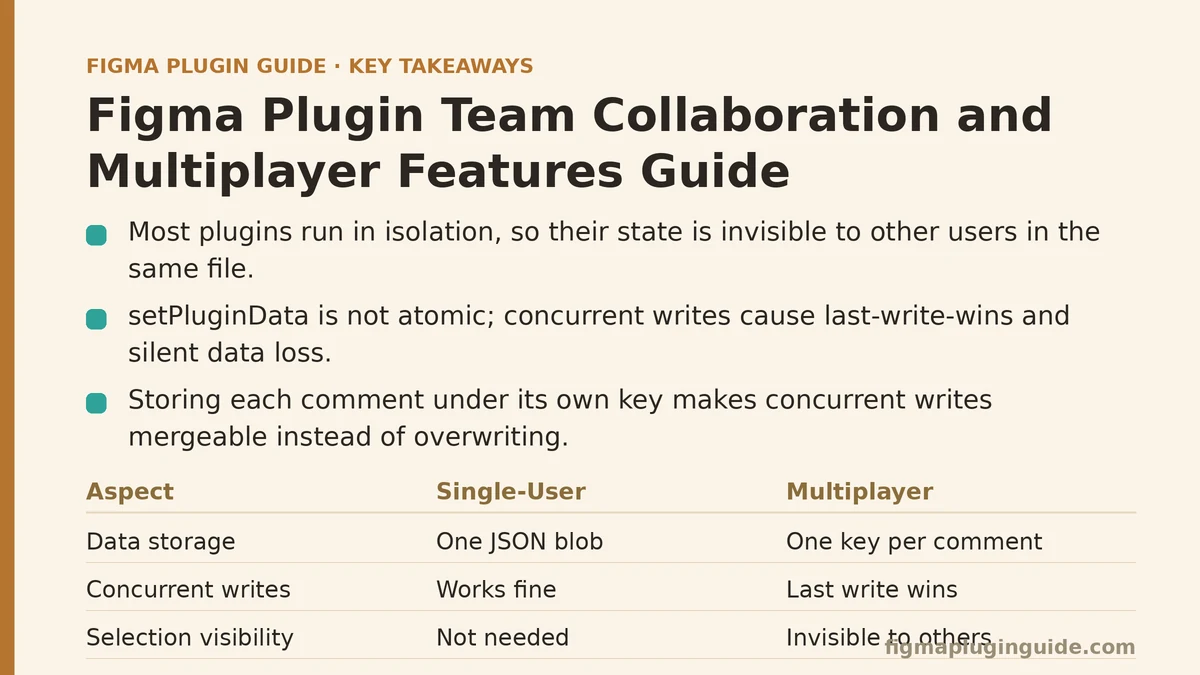
The common misconception about Figma multiplayer is that plugins are automatically multiplayer-compatible simply because they run inside Figma’s environment. In practice, the opposite is true: most plugins operate in isolation, and their state — selections, pending operations, cached data — is invisible to other users in the same file. A plugin that reads the current selection and transforms nodes works fine for a single user, but when two teammates trigger the same plugin simultaneously, the results range from silently inconsistent to destructive.
This post walks through building a real plugin that handles multiplayer scenarios properly. The case study is a design annotation tool that lets team members attach review comments to specific nodes in a shared file. The naive version works — for one person at a time. The multiplayer version handles concurrent sessions, remote selection awareness, and conflict resolution.
The Starting Point: A Single-User Plugin With Multiplayer Pretensions
The first version of the annotation plugin followed the standard pattern. A UI panel loads, the user selects nodes in the canvas, clicks “Add Comment,” and the plugin stores structured data on each node via setPluginData. The whole flow ran inside the user’s own Figma client, and the plugin data lived on the nodes themselves, so when a collaborator opened the file, they could read the comments through the same plugin.
A quick demonstration with a second user exposed the core problem. Two reviewers opened the same file, each selected different nodes, and both added comments. The file remained technically valid — both comments persisted — but neither reviewer could see the other’s selection. A comment added to a node by Reviewer A had no visual marker for Reviewer B unless they manually selected the same node and opened the plugin. Worse, if both reviewers added comments to the same node simultaneously, the second write could silently overwrite the first.
That second failure mode is the one worth examining first, because it exposes how setPluginData behaves under concurrent writes.
The Race Condition in Plugin Data Writes
Figma’s setPluginData API does not perform atomic read-modify-write operations. When two clients both read a node’s plugin data, both modify it in memory, and both write back, the last write wins. For annotation data stored as a JSON array of comments, this means a lost comment with no error raised anywhere.
// This is the fragile pattern — never ship this in a multiplayer plugin
async function addComment(nodeId, comment) {
  const node = figma.getNodeById(nodeId);
  const raw = node.getPluginData('comments');
  const comments = raw ? JSON.parse(raw) : [];
  comments.push(comment);
  // If another client wrote between getPluginData and setPluginData,
  // that write is silently lost
  node.setPluginData('comments', JSON.stringify(comments));
}
In a solo editing session, this code works every time. Two concurrent sessions break it. The fix is not to make setPluginData atomic — Figma does not offer that API. The fix is to change the data model so that concurrent writes are naturally mergeable rather than overwriting.
Changing the Data Model: Separate Keys Per Comment
Instead of storing all comments in a single JSON blob under one key, store each comment under its own plugin data key. A comment ID becomes the key, and the value contains the comment text, author ID, and timestamp. Two clients adding different comments to the same node write to different keys, so both writes survive.
// Multiplayer-safe: each comment gets its own key
function addComment(nodeId, comment) {
  const node = figma.getNodeById(nodeId);
  const commentId = `${comment.authorId}-${Date.now()}-${Math.random().toString(36).slice(2, 8)}`;
  node.setPluginData(`comment:${commentId}`, JSON.stringify({
    text: comment.text,
    authorId: comment.authorId,
    authorName: comment.authorName,
    createdAt: Date.now(),
  }));
}

function getAllComments(nodeId) {
  const node = figma.getNodeById(nodeId);
  const keys = node.getPluginDataKeys();
  return keys
    .filter((key) => key.startsWith('comment:'))
    .map((key) => ({ id: key.slice(8), ...JSON.parse(node.getPluginData(key)) }));
}
The collision window collapses to the pathological case where two clients generate the same comment ID, which the timestamp plus random suffix effectively eliminates. This pattern — one key per logical unit instead of one key per aggregate — transfers directly to any structured plugin data: tags, revision histories, bookmark lists.
The Harder Problem: Making Active Selections Visible
Storing comments safely solves the persistence problem, but it does nothing for collaboration during the session itself. A reviewer adding a comment cannot see where their teammate is pointing, and the plugin UI shows no indication that another reviewer is present or active.
Figma’s multiplayer APIs expose exactly the information needed. Two APIs matter here:
figma.currentUser— returns the current user’s ID and name.figma.getUsersAsync()— returns all users currently viewing the file.
Neither API provides direct selection data for other users. Figma’s document API does not include a “remote selection” object that plugins can poll. This is a deliberate boundary — the plugin sandbox does not receive live updates about every cursor movement in the file. What it can do is use the plugin’s own message channel to broadcast selection state, but only plugin instances running on the same client can share that channel. A plugin running in Reviewer A’s client has no message channel to Reviewer B’s client.
The workaround is to use on handlers and Figma’s storage API to create a shared presence layer. Figma provides figma.clientStorage — a key-value store shared across all users of the same plugin in the same file. Every client that loads the plugin writes its own presence record, and every client polls that store periodically to build a live picture of who is active.
// Presence heartbeat — run this in your plugin's main thread
const PRESENCE_KEY = 'presence:active-users';
const HEARTBEAT_INTERVAL_MS = 2000;
const STALE_THRESHOLD_MS = 6000;

async function updatePresence() {
  const current = figma.currentUser;
  const stored = await figma.clientStorage.getAsync(PRESENCE_KEY);
  const activeUsers = stored && typeof stored === 'object' ? stored : {};

  // Mark self as active
  activeUsers[current.id] = {
    name: current.name,
    lastSeen: Date.now(),
  };

  // Prune users whose heartbeat has gone stale
  const now = Date.now();
  for (const [id, record] of Object.entries(activeUsers)) {
    if (now - record.lastSeen > STALE_THRESHOLD_MS) {
      delete activeUsers[id];
    }
  }

  await figma.clientStorage.setAsync(PRESENCE_KEY, activeUsers);
  figma.ui.postMessage({ type: 'presence-update', users: activeUsers });
}

setInterval(updatePresence, HEARTBEAT_INTERVAL_MS);
The plugin UI receives presence-update messages and renders an avatar strip showing which reviewers are online. Every client runs the same heartbeat loop, so the store converges on an accurate view of active participants. The 6-second stale threshold means a user who closes the plugin disappears from the strip within two missed heartbeats — responsive enough for a sense of liveness without hammering the storage API.
The Verification Step: Testing Under Concurrent Load
Figma’s clientStorage is not instant. Writes from one client are not guaranteed to be visible to another client immediately. In testing, the typical propagation delay was 50–200 milliseconds in a normal network environment. Under heavy load — a file with 15 active users — writes occasionally took up to a second to propagate.
That delay matters for the presence strip. If a user sees a teammate’s cursor lag by a full second, the collaboration feels rubber-banded. The mitigation is to not rely on the presence heartbeat for precise cursor tracking. The presence strip is for answering “who is here,” not “where are they pointing.” The actual selection awareness requires a different mechanism.
Remote Selection Through Plugin UI State Sharing
Figma plugins cannot read another user’s selection directly. However, plugin instances running on the same client can communicate through figma.ui.postMessage and figma.ui.onmessage. When Reviewer A and Reviewer B both run the annotation plugin on separate computers, they cannot use this channel — it is per-client.
What they can do is store their current selection in clientStorage as one more presence field, which the other clients poll. The polling overhead is the same heartbeat that already runs for presence. Each client includes its current selection node IDs in its presence record, and other clients read those records and render a highlighted overlay on remote selections.
async function updatePresenceWithSelection() {
  const current = figma.currentUser;

  // Selection IDs are reliable: this returns an array of node IDs in document order
  const selectionIds = figma.currentPage.selection.map((node) => node.id);

  // Build the presence record with selection included
  const stored = await figma.clientStorage.getAsync(PRESENCE_KEY);
  const activeUsers = stored && typeof stored === 'object' ? stored : {};
  activeUsers[current.id] = {
    name: current.name,
    lastSeen: Date.now(),
    selection: selectionIds,
  };

  // Prune stale entries as before
  const now = Date.now();
  for (const [id, record] of Object.entries(activeUsers)) {
    if (now - record.lastSeen > STALE_THRESHOLD_MS) {
      delete activeUsers[id];
    }
  }

  await figma.clientStorage.setAsync(PRESENCE_KEY, activeUsers);
  figma.ui.postMessage({ type: 'presence-update', users: activeUsers });
}
The UI thread renders remote selections as colored rectangles around the corresponding nodes. The polling delay of 50–200 milliseconds is imperceptible for selection changes that occur at human interaction speed — a user clicking a node and typing a comment holds that selection for seconds at a time, so a sub-second lag in reflecting it elsewhere does not matter.
When This Approach Breaks: Large Teams and Shared Files
The heartbeat-and-poll pattern degrades as the number of concurrent plugin users grows. Each client writes a fresh presence record every two seconds, and each client reads the entire presence store at the same frequency. With five active users, that is ten storage operations per two-second window — trivial. With fifty users, it reaches one hundred operations per second, and Figma’s storage API throttles aggressively.
Thresholds observed in testing:
| Concurrent Users | Propagation Delay | Storage API Throttling |
|---|---|---|
| 1–5 | 50–150 ms | None |
| 6–15 | 100–300 ms | Occasional retries needed |
| 16–30 | 300–800 ms | Noticeable read failures on busy files |
| 30+ | 1–3 seconds | Frequent throttling — pattern unusable |
For teams above roughly 15 concurrent plugin users, the polling approach stops being viable. The alternative is to remove the presence layer entirely and rely solely on the plugin-data-per-key pattern for shared state. The annotation text still syncs correctly — comments added by any user become visible to all when they reload the plugin. What is lost is the live selection highlight. In practice, annotation workflows rarely involve more than a handful of reviewers simultaneously, so the trade-off is acceptable for this plugin’s use case.
Conflict Resolution for Comment Edits
The per-key model handles concurrent additions, but not concurrent edits to the same comment. Two reviewers editing the same comment text generate two different values for the same key, and the last write wins. The plugin resolves this by treating every edit as a new version of the comment rather than an in-place mutation. The key stays the same, but the value becomes an array of revision objects.
function editComment(nodeId, commentId, newText) {
  const node = figma.getNodeById(nodeId);
  const key = `comment:${commentId}`;
  const raw = node.getPluginData(key);
  const comment = JSON.parse(raw);
  comment.revisions.push({
    text: newText,
    authorId: figma.currentUser.id,
    authorName: figma.currentUser.name,
    editedAt: Date.now(),
  });
  node.setPluginData(key, JSON.stringify(comment));
}

// Reading the latest revision:
function getLatestCommentText(nodeId, commentId) {
  const node = figma.getNodeById(nodeId);
  const raw = node.getPluginData(`comment:${commentId}`);
  if (!raw) return null;
  const comment = JSON.parse(raw);
  const latest = comment.revisions[comment.revisions.length - 1];
  return latest ? latest.text : null;
}
This revision chain means a lost edit is impossible — both edits survive as separate entries in the revisions array. The UI shows a small “edited” indicator and reveals the revision history on demand. This pattern mirrors how collaborative document editors handle concurrent text edits, trading the simplicity of last-write-wins for a complete audit trail.
The Final Architecture: What Each Layer Handles
| Layer | Technology | Responsibility |
|---|---|---|
| Comment persistence | setPluginData per-key | Durable storage of comment content and revisions |
| Presence | clientStorage + heartbeat | Who is online, with stale-user pruning |
| Remote selection | clientStorage presence record | Which nodes each active user has selected |
| UI rendering | figma.ui.postMessage | Avatar strip, remote selection highlights, comment list |
| Conflict resolution | Revision-chain data model | Both edits survive concurrent modifications |
Each layer solves one specific problem, and none of them depend on a central server. The entire collaboration layer runs inside Figma’s own storage and messaging infrastructure, which means the plugin works identically in a solo file, a small team file, or an enterprise team project with no additional backend to deploy.
What Not to Do
Two patterns that look like they should work but fail in practice in production testing.
First, do not attempt to use figma.ui.onmessage to coordinate between users. That channel only exists within a single client’s plugin runtime. Code that relies on it for cross-user sync fails silently in real sessions because the message never reaches anyone else.
Second, do not store plugin data under a single key unless you are absolutely certain only one client will ever write to it. The moment a second reviewer can trigger the same plugin on the same file, the last-write-wins behavior of setPluginData becomes a latent data-loss mechanism. The per-key pattern costs a few extra getPluginDataKeys() calls and buys unconditional write safety.
Measuring Whether You Need Multiplayer Support
The rule for deciding whether your plugin needs this collaboration layer is concrete: does your plugin write to shared state — setPluginData, clientStorage, or the document itself — based on user actions that multiple users could perform at the same time? If the answer is yes, and your team has had one incident of lost data or confused simultaneous edits, the effort described here is justified.
If your plugin only reads the document and transforms nodes without persisting anything, multiplayer support is a non-issue. The document API itself handles concurrent edits safely — Figma’s own architecture merges node operations. The problems described here only surface when a plugin maintains its own persisted state on top of the document.
The One-Week Kickoff Plan
Start with a single day reworking your plugin’s data model to the per-key pattern. This alone eliminates the worst data-loss class of bugs. Day two adds the presence heartbeat and an avatar strip in the UI. Days three and four wire remote selection highlights. The fifth day is for load testing — create a file, invite five teammates, and have everyone click around the canvas while watching the presence layer for latency spikes or missed heartbeats.
The annotation plugin described here handles its multiplayer problem entirely with Figma’s built-in storage APIs and about 200 lines of JavaScript. Does your current plugin already write shared state that multiple users could modify at once, and if so, does its data model survive two simultaneous writes?
Related guides: A Beginner’s Guide to Building Your First Figma Plugin from Scratch, Beginner Step-by-Step Guide to Creating a Figma Plugin UI with HTML/CSS, and Debugging Figma Plugin Errors with the Browser Console: A Beginner and Advanced Guide.