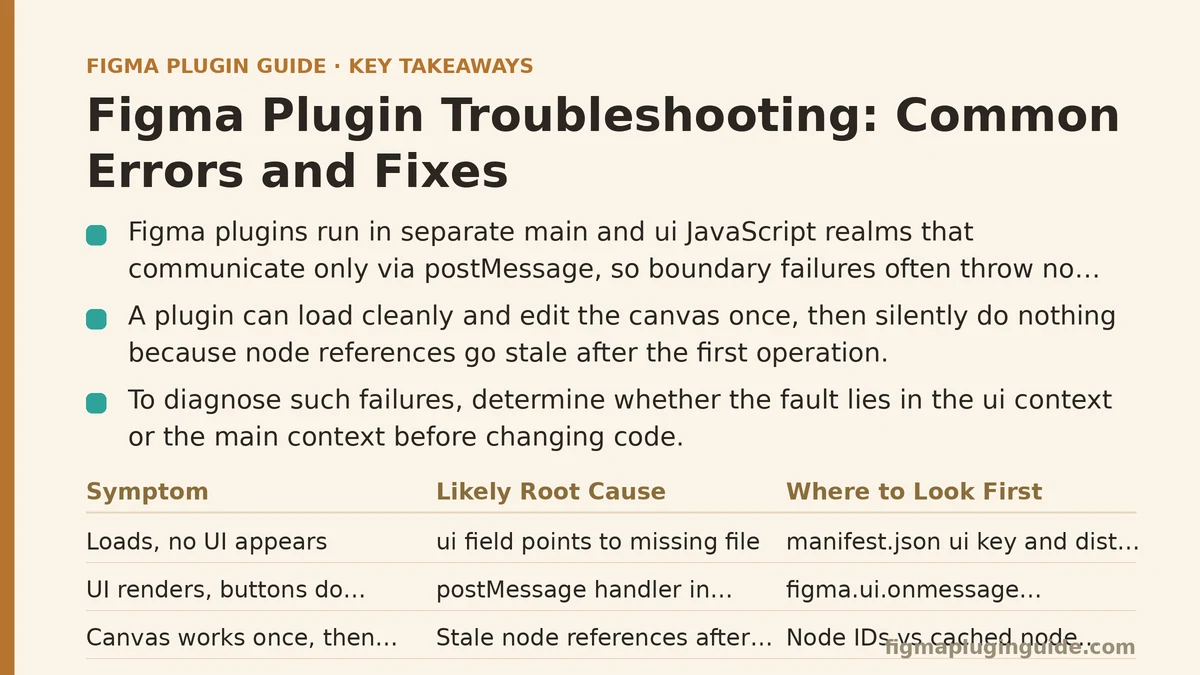
Most developers assume a Figma plugin that loads without an error has loaded correctly. That assumption is wrong often enough to cause real wasted time. A plugin can open its UI, render every control, respond to clicks, and still be silently broken — because the main and ui execution contexts are separate JavaScript realms that communicate only through postMessage, and failures in that boundary frequently produce no thrown exception at all. The plugin “works” until the first action that depends on cross-context state, and then it fails in a way that produces no stack trace.
This post walks through one representative failure in depth — a plugin that loads cleanly, edits the canvas correctly for the first action, and then silently does nothing on the second. Along the way, the broader categories of Figma plugin errors are mapped to specific symptoms, so the diagnostic path generalizes.
The Failure Case: First Action Works, Second Action Does Nothing
The symptom is specific and reproducible. A plugin draws a frame on the canvas when the user clicks a button. The frame appears. The user clicks the same button again. Nothing happens — no error in the console, no visible change, no crash. The plugin’s UI still responds; only the canvas action is dead.
This pattern accounts for a large share of Figma plugin bug reports, and it almost always traces back to one of four roots. Before walking through the diagnosis, it helps to have a reference for the error categories themselves.
| Symptom | Likely Root Cause | Where to Look First |
|---|---|---|
| Plugin loads, no UI appears | ui field in manifest points to a missing or unbuilt file | manifest.json ui key and the dist/ output |
| UI renders but buttons do nothing | postMessage handler registered inside the wrong scope or after a race | figma.ui.onmessage placement in code.ts |
| Canvas edits work once, then silently stop | Stale node references after the first operation invalidates them | Node IDs vs. cached node objects |
| Plugin crashes on load with a red error toast | Top-level await or use of a Figma API method before figma.showUI() | Execution order of module-level code |
| Works in dev, fails in production build | Dev-only globals or tree-shaking removed a used export | Bundler config (esbuild, webpack) and the production bundle |
figma.clientStorage read returns undefined | Value written under a different key, or async read not awaited | All clientStorage calls are promise-based |
| Font load fails with “Cannot load font” | Font used in the file is not available to the plugin’s runtime | Call figma.loadFontAsync() before any text mutation |
TypeError: Cannot read property 'X' of null | figma.currentPage.selection[0] accessed when selection is empty | Guard selection access with a length check |
The second row of that table — UI renders, buttons do nothing — is where this case sits, but the fourth row (silently stops after first operation) is close behind, and the two frequently overlap.
Step One: Confirming Which Context Is Failing
The first diagnostic step is to determine whether the failure is in the ui context (the HTML/JS rendered in the iframe) or the main context (the plugin logic running against the Figma API). Every plugin has these two realms, and each has its own console.
In Figma’s plugin development, the ui console output goes to the browser-like devtools you open from the plugin menu, while main context logs appear in the same devtools under a different tab or as a separate log stream, depending on the Figma desktop version. If you only check one console, you will miss half the failures.
To locate the boundary, add a log at the message handler:
// code.ts (the "main" context)
figma.showUI(__html__, { width: 320, height: 240 });

figma.ui.onmessage = (msg) => {
  console.log("[main] received:", msg);   // <-- does this fire on the 2nd click?
  if (msg.type === "draw-frame") {
    handleDrawFrame();
  }
};
If [main] received appears on the first click but not the second, the UI is not sending the message. If it appears on both clicks, the bug is in handleDrawFrame — and the “silent” behavior is almost certainly a stale node reference or an early return.
Step Two: The Stale Node Reference Problem
Assume the log fired twice, and the second call to handleDrawFrame did nothing. Look at how the frame is created and referenced.
A common (broken) implementation caches the created node and reuses it:
// BROKEN: caches a node reference across operations
let lastFrame: FrameNode | null = null;

function handleDrawFrame() {
  if (lastFrame) {
    // Mutate the existing frame instead of creating a new one
    lastFrame.resize(400, 300);
    return; // <-- silently returns if the mutation is a no-op
  }
  const frame = figma.createFrame();
  frame.name = "Plugin Frame";
  figma.currentPage.appendChild(frame);
  lastFrame = frame;
}
The bug is subtle: lastFrame.resize(400, 300) on the second click resizes the frame to the same dimensions it already has. Figma’s API treats a resize to identical dimensions as a no-op, so no error, no change, no visible effect. The plugin appears broken when it is behaving exactly as written.
This is the general class of error that makes plugin bugs hard to diagnose: an operation that is technically valid but produces no observable change. The fix is to either always create a new node, or explicitly check whether state has changed before mutating:
// FIXED: create a new frame each time, or branch explicitly
function handleDrawFrame() {
  const frame = figma.createFrame();
  frame.name = "Plugin Frame";
  frame.resize(400, 300);
  figma.currentPage.appendChild(frame);
  figma.viewport.scrollAndZoomIntoView([frame]);
}
The scrollAndZoomIntoView call is not decorative — it forces a visible change in the viewport, which confirms the operation ran even when the frame lands off-screen.
Step Three: Guarding Against the Empty Selection
The next most common silent failure is accessing figma.currentPage.selection without checking its length. When a plugin expects a selected node and the user has deselected everything, this throws a TypeError — but if the throw happens inside a postMessage handler that is not wrapped in a try/catch, the error can be swallowed by the message boundary and never surface in either console.
The defensive pattern is a length check before any array index access:
function getSelectedNode(): SceneNode | null {
  const selection = figma.currentPage.selection;
  if (selection.length === 0) {
    figma.notify("Select a node first.");
    return null;
  }
  return selection[0];
}
The figma.notify call matters more than it looks. Without user feedback, a plugin that silently refuses to act is indistinguishable from one that is broken. Notify messages convert silent failures into visible ones, which is the fastest way to make plugin behavior debuggable during development.
Step Four: The Font Loading Trap
Any plugin that mutates text content must load the font before touching the characters. Skipping this step throws a specific error, but only on certain files — specifically, files that use a font the plugin hasn’t loaded.
async function updateText(node: TextNode, content: string) {
  await figma.loadFontAsync(node.fontName as FontName);
  node.characters = content;
}
Two failure modes cluster here. First, if the text node uses a mixed font (fontName is figma.mixed), the call to loadFontAsync receives an invalid argument and throws. The fix is to iterate getRangeFontName over the node’s length and load each unique font. Second, if the font is not installed locally, the load rejects, and an unhandled rejection on a plugin’s main context can halt execution of subsequent operations in the same tick.
For mixed-font nodes:
async function loadAllFontsInNode(node: TextNode) {
  const fonts = new Set<string>();
  for (let i = 0; i < node.characters.length; i++) {
    const font = node.getRangeFontName(i, i + 1);
    if (font !== figma.mixed) {
      fonts.add(JSON.stringify(font));
    }
  }
  for (const font of fonts) {
    await figma.loadFontAsync(JSON.parse(font));
  }
}
This is slower than a single load call but survives the mixed-font case that the naive version crashes on.
Step Five: The Dev-vs-Production Divergence
A plugin that runs correctly under npm run dev but fails in the built output usually points at how the bundler treats the main and ui entries. Two specific causes dominate.
Cause one: tree-shaking dropped a used export. If code.ts exports a function that is only referenced dynamically (for example, via a string-keyed lookup or a figma.ui.onmessage string switch), a bundler that cannot statically see the usage may remove it. The result is a undefined is not a function error only in the production bundle.
Cause two: a dev-only global leaked into the source. Accessing process.env.NODE_ENV in a branch that the bundler folds to "production" can strip a code path the plugin depends on at runtime. This is common when using process.env for feature flags that should not exist in production.
The general fix is to keep the ui and main entries explicit in the bundler config, avoid dynamic string-based dispatch where a direct reference works, and gate any dev-only behavior behind a __DEV__ constant that is defined identically in both configurations.
Step Six: When to Stop Debugging and Restructure
There is a point in plugin work where continuing to patch the manifest, the bundler, and the message handler produces diminishing returns. That point arrives when the plugin’s failure modes keep tracing back to the same architectural gap: the plugin is doing too much inside main and relying on the UI for state it does not need.
When to restructure:
- You have added more than three
figma.ui.onmessagebranches and each has its own try/catch. - You are storing plugin state in the UI context and passing it back to
mainon every action. - The plugin’s
maincode has grown past several hundred lines and file organization has become an afterthought.
When NOT to restructure:
- The failure is a single missing
awaitor a stale reference. Fix the bug, ship the patch, and move on. Large refactors to solve small bugs introduce more surface area for new bugs. - The plugin is a one-off and the broken behavior only occurs in edge cases the user never hits. Not every silent failure is worth chasing.
The rule of thumb: fix forward when the root cause has a one-line fix and no sibling bugs nearby. Restructure only when the same class of error has appeared three or more times in the same file.
A Short Diagnostic Checklist
Run through these in order when a plugin misbehaves — most cases resolve within the first four:
- Check both consoles —
mainanduilog separately; verify messages cross the boundary. - Add a log at the
postMessagehandler — confirm the message arrives and identify which side is dropping. - Check for stale node references — re-fetch nodes by ID rather than caching object references across operations.
- Guard all selection access —
selection.length === 0before any index access. - Load fonts before text mutation — and iterate range fonts for mixed-font nodes.
- Diff dev vs. production builds — inspect the built
main.jsfor exports the bundler removed. - Add
figma.notifyat every silent return — convert invisible no-ops into visible feedback.
The bug that started this post — first action works, second action does nothing — resolves through items two and three. The larger pattern is that Figma plugin failures are rarely about the Figma API itself. They are about the boundaries between contexts, between operations that changed state and operations that did not, and between what ran in development and what survived the build. Debugging those boundaries is the core skill the rest of the plugin workflow depends on.
Related Guides
If this post helped narrow down a failure, the following guides cover adjacent concerns worth reading next: Best Figma Plugins for Icon Design and Management, A Beginner’s Guide to Building Your First Figma Plugin from Scratch, and Building a Data Sync Layer for Figma Plugins: Airtable, Notion, and Google Sheets.