Say you are trying to ship a change to a plugin that hundreds of files already depend on — maybe you renamed a stored data key, changed the shape of a config object, or swapped out an API your plugin calls under the hood. You push the update through the Figma publish flow, and within a day, support messages start coming in from users whose existing files now behave strangely or throw errors on plugin launch. Nothing in the update process stopped you from breaking backward compatibility, because nothing in the update process is built to catch that automatically. The responsibility sits entirely with you.
That scenario is common enough that it’s worth walking through a deliberate, repeatable process for versioning and shipping plugin updates, rather than treating each release as a one-off.
Step 1: Establish a Version Numbering Scheme Before You Need One
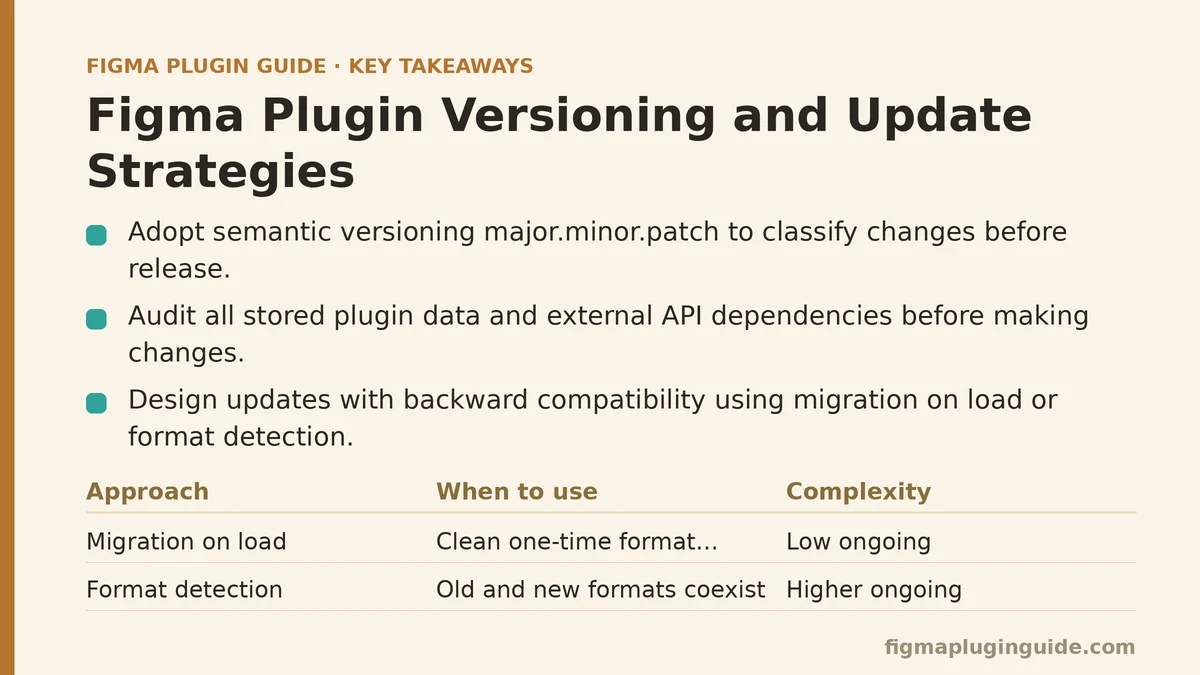
If your plugin doesn’t already follow a consistent versioning convention, fix that before your next release rather than after something breaks. Semantic versioning — major.minor.patch — maps cleanly onto plugin development: patch releases for bug fixes that don’t change behavior, minor releases for new features that remain backward compatible, and major releases reserved specifically for changes that break compatibility with existing files or stored data.
The value here isn’t the numbers themselves. It’s the discipline of asking, before every release, which category a given change falls into. That single question forces you to notice breaking changes at the point when you can still plan around them, instead of discovering them from a support inbox.
Step 2: Audit What Your Plugin Stores and Depends On
Before changing anything, map out everything your current version reads or writes: plugin data stored on nodes via setPluginData, shared plugin data, client storage, and any external API contracts your plugin relies on. This audit is the foundation for every decision that follows, because you can’t reason about backward compatibility for data structures you haven’t fully inventoried.
Pay particular attention to data written directly onto user files through setPluginData, since that data persists inside files indefinitely — long after a user has updated to your newest version, and sometimes long after they’ve forgotten which plugin wrote it in the first place. A schema change here has a much longer tail of consequences than a change to your plugin’s own internal UI logic.
Step 3: Design for Backward Compatibility Before Writing the Update
Once you know what’s at stake, the update itself should be written with old data in mind from the start, not patched afterward to tolerate it. Two approaches handle most situations:
Migration on load: When your plugin detects data written by an older version, transform it into the new format the moment the plugin runs, then save it back in the updated shape. This keeps your ongoing codebase clean, since you’re only ever working with one current format after the migration step runs.
Format detection with dual handling: Where migration on load isn’t practical — the old and new formats need to coexist for a while, for instance — write logic that checks a version marker in the stored data and branches accordingly. This adds some ongoing complexity, but it buys you flexibility when a clean one-time migration isn’t realistic.
Either way, store an explicit version identifier alongside your plugin data. Without one, you’re left guessing at a stored object’s shape by inspecting its fields, which gets fragile and error-prone fast once you’ve shipped more than a couple of format revisions.
Step 4: Test Against Real Old-Version Files, Not Just Your Current Test Files
A migration path that only gets tested against freshly created files hasn’t been tested at all. Keep a set of files created with previous plugin versions specifically for this purpose, and run your update against them before every release that touches stored data formats. Ideally, keep at least one file from each major version you’ve ever shipped, since users skip updates for months at a time and may jump straight from an old version to your newest release without touching anything in between.
This test set is worth more over time than almost any other testing asset you’ll build for the plugin, because it’s the only reliable way to verify that migration logic behaves correctly against data your current development environment never naturally produces anymore.
Step 5: Roll Out Gradually Rather Than Publishing to Everyone at Once
Figma’s publishing flow doesn’t offer built-in staged rollout the way some app stores do, but you can approximate it. Consider publishing significant updates first to a smaller test audience — a private plugin variant, a beta channel communicated to power users, or simply a soft announcement inviting early feedback before a broader push. This gives you a window to catch migration issues affecting real user files before the update reaches your full user base.
For updates carrying meaningful risk, resist the urge to publish and move on. Watch error reports and support channels closely for the first day or two after release, since migration bugs affecting an edge case in stored data often surface within hours, not weeks.
Step 6: Communicate Breaking Changes Before They Happen
If a major version genuinely requires users to take some action — re-authenticating with an external service, re-running a setup step, or accepting that some older data won’t carry forward cleanly — say so clearly in your release notes and, where possible, inside the plugin itself the first time it runs after the update. Users tolerate friction from a breaking change far better when they were warned about it than when they encounter it as an unexplained failure.
A brief in-plugin notice on first launch after a major update — something as simple as “This update changes how your saved presets are stored; existing presets will be automatically converted” — heads off a meaningful share of confused support requests before they’re ever sent.
Step 7: Keep a Rollback Plan Ready
Even with careful migration logic and staged rollout, some update will eventually cause a problem you didn’t anticipate. Know in advance how you’d revert: keep your previous version’s code tagged and buildable, and understand what happens to any data already migrated by the broken update if you need to publish a rollback. A rollback that fixes the plugin’s behavior but leaves already-migrated data in an inconsistent state isn’t a complete fix — it’s a second problem layered on top of the first.
Having this plan sketched out before you need it turns a stressful, time-pressured incident into a known procedure you can execute calmly.
Putting the Steps Together
| Step | Focus | Why It Matters |
|---|---|---|
| 1. Version scheme | Categorize changes consistently | Forces early identification of breaking changes |
| 2. Data audit | Inventory stored data and dependencies | Foundation for compatibility decisions |
| 3. Compatibility design | Migration or dual-format handling | Prevents silent breakage of existing files |
| 4. Old-version testing | Test against real legacy files | Catches migration bugs before users do |
| 5. Gradual rollout | Limit initial exposure to risky updates | Contains damage if something goes wrong |
| 6. Clear communication | Warn users about breaking changes | Reduces confusion and support volume |
| 7. Rollback readiness | Prepare to revert safely | Turns incidents into manageable procedures |
Where This Process Tends to Break Down in Practice
The most common failure point isn’t any single step above — it’s skipping Step 2 under time pressure, publishing a change without a full picture of what data it touches, and discovering the gaps only after files in the wild start behaving unexpectedly. A rushed release schedule makes that audit feel skippable precisely when it matters most, since the plugin appears to work fine against every file you happen to have open during development.
The fix isn’t complicated, just disciplined: treat the data audit and old-version testing as required steps for any release touching stored formats, not optional ones you’ll get to if time allows. A release delayed by a day to properly test against legacy files costs far less than a release that goes out broken and needs a rushed follow-up fix under pressure from an already frustrated user base.
What part of your update process currently gets skipped when a release is running behind schedule? That’s usually the exact place worth building a firmer checkpoint into your workflow.
Related guides: A Beginner’s Guide to Building Your First Figma Plugin from Scratch, Building a Figma Plugin That Generates Responsive Type Scales for Beginners, and Figma Plugin API Rate Limiting and Quota Management.