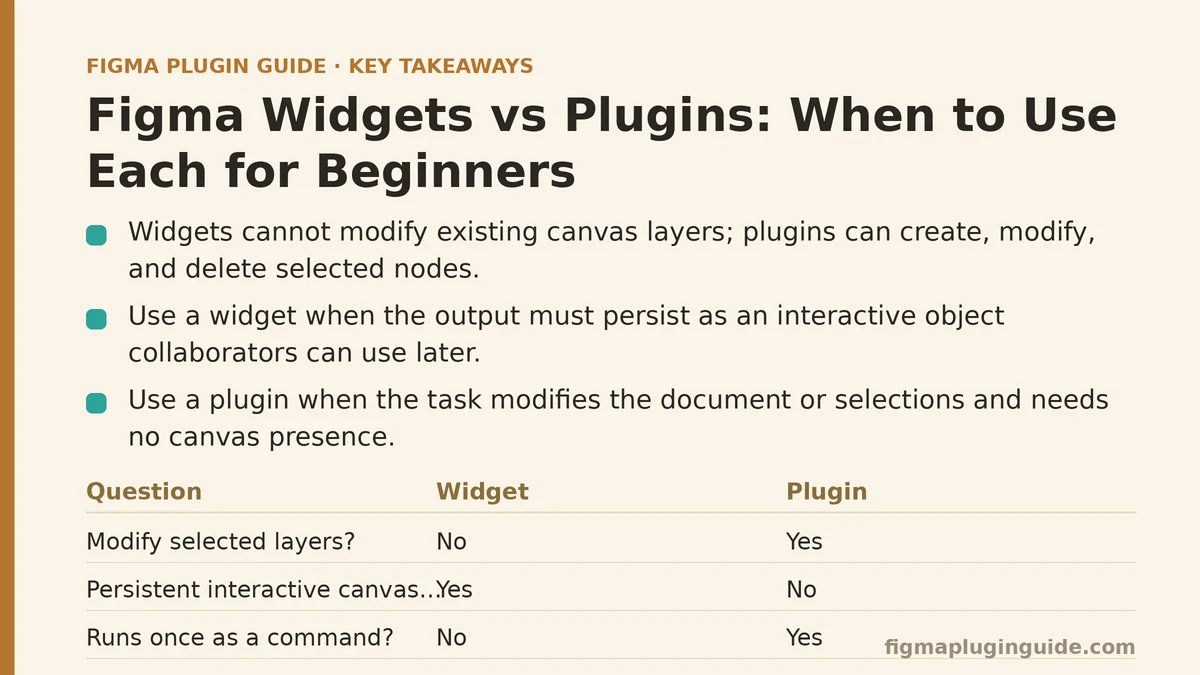
Figma widgets cannot modify existing layers on a canvas. This is a hard architectural constraint, not a preference or a permissions issue, and it is the single fact that decides most widget-versus-plugin questions before any other consideration comes into play. A widget operates inside its own isolated container on the canvas where it can only read and write its own internal state; a plugin, by contrast, receives a scoped handle to the current document and can create, modify, and delete nodes you select. Beginners frequently conflate the two because they live in the same “Resources” panel and share a similar launch flow, but the runtime boundaries between them are strict.
Myth: A Widget Is Just a Lightweight Plugin
Reality: They are different runtime models with different APIs, different permission surfaces, and different distribution constraints. The distinction is not about size or complexity.
A widget is registered with figma.widget.register(), receives a useSyncedState hook for persistence, and renders through AutoLayout and Text primitives from the figma.widget namespace. It does not have access to figma.currentPage, figma.getNodeById, or any of the document-manipulation methods a plugin calls. The widget’s output is a single node on the canvas — the widget instance itself — and everything it displays is drawn inside that boundary.
A plugin is registered with figma.showUI() or figma.closePlugin(), runs as a one-shot or long-lived command, and interacts with the document through the main figma global. It can select nodes, apply styles, traverse the layer tree, and export assets.
The confusion arises because widgets and plugins share the same manifest file (manifest.json), the same publishing pipeline to the Figma Community, and the same in-editor menu. But the API surface they can touch is disjoint.
Practical fallout of the myth: Beginners often try to build a widget that “cleans up selected layers” or “renames frames by pattern.” Both are plugin tasks — widgets can only manipulate their own internal state, so those features are impossible in widget form, no matter how the code is written.
Myth: Pick Widgets for Anything User-Facing and Plugins for Anything Automated
Reality: The distinction is about where the state lives and who controls the input, not about how visible the tool is.
A widget is a persistent artifact on the canvas. Once inserted, it stays there, holds its own state, and can be interacted with by anyone who has edit access to the file. Think of a poll, a checklist, a status badge, a mini calculator, or a design token display embedded in a design system page.
A plugin is a command you invoke. It runs, does something to the document or to selections, and either closes or stays open as a panel. It has no presence on the canvas after it closes. Think of an icon exporter, a bulk text replacer, a variable creator, or a content generator.
The decision test is one question: does the output need to persist as an editable object that collaborators can interact with later? If yes, a widget. If no, a plugin.
| Question | Widget | Plugin |
|---|---|---|
| Does it need to modify selected layers? | No | Yes |
| Does it produce a persistent, interactive object on the canvas? | Yes | No |
| Does it need access to the whole document? | No | Yes |
| Does it run once as a command? | No | Yes |
| Can collaborators interact with its output later? | Yes (if the widget is interactive) | No (output is just nodes) |
| Does it need its own isolated state? | Yes | Possible, but transient |
Myth: Both Are Interchangeable Once You Learn JavaScript
Reality: The overlap in JavaScript syntax is real, but the API namespaces are separate, and copy-pasting code between them fails immediately.
Here is a minimal widget that displays a counter. Note the figma.widget namespace and the useSyncedState hook:
// widget-src/code.tsx
const { widget } = figma;
const { AutoLayout, Text, useSyncedState } = widget;

function Counter() {
  const [count, setCount] = useSyncedState("count", 0);
  return (
    <AutoLayout
      direction="horizontal"
      spacing={8}
      padding={12}
      cornerRadius={8}
      fill="#FFFFFF"
      stroke="#E5E5E5"
      onClick={() => setCount(count + 1)}
    >
      <Text fontSize={16}>Clicks: {count}</Text>
    </AutoLayout>
  );
}

widget.register(Counter);
And here is a minimal plugin that performs a document-level operation — renaming every selected frame with a prefix:
// plugin-src/code.js
const selection = figma.currentPage.selection.filter(
  (node) => node.type === "FRAME"
);

if (selection.length === 0) {
  figma.closePlugin("Select at least one frame.");
} else {
  for (const frame of selection) {
    frame.name = `[Draft] ${frame.name}`;
  }
  figma.closePlugin(`Renamed ${selection.length} frame(s).`);
}
Attempting to call figma.currentPage.selection inside widget code throws at build time; attempting to call useSyncedState inside a plugin throws a reference error at runtime. The two are not substitutes for each other. Each requires its own build target, its own entry in manifest.json, and its own testing path.
Myth: You Should Pick One and Learn It Deeply Before Touching the Other
Reality: For beginners the reverse is often true. Learning both at a shallow level first clarifies which tool fits each problem, because the boundary becomes obvious the moment you try to write code that crosses it.
A reasonable implementation path for someone starting from zero:
- Build a plugin first — even a trivial one that logs the name of the selected node. This teaches the
manifest.jsonstructure, thefigmaglobal, and the plugin launch flow. - Verify the boundary — try to access
figma.currentPagefrom a widget file and read the error. The compiler refuses it, which makes the constraint concrete. - Build a widget next — a small one that displays editable text. This teaches the declarative rendering model,
useSyncedState, and the fact that interactive widgets needsetEditModeor an onClick handler. - Decide per project — return to the decision test above and apply it to the specific task in front of you.
The manifests differ in a way that trips up first-timers:
{
  "name": "My Tool",
  "id": "1234567890",
  "api": "1.0.0",
  "main": "dist/code.js",
  "editorType": ["figma"],
  "ui": "dist/ui.html",
  "documentAccess": "dynamic-page",
  "networkAccess": {
    "allowedDomains": ["api.example.com"]
  }
}
For a plugin, main points to the code bundle and ui (optional) points to a UI HTML file. For a widget, main points to the widget bundle and containsWidget: true is added. Forgetting containsWidget is the most common reason a widget fails to appear in the widget picker even though the code runs without errors.
Myth: Widgets Are the Modern Replacement for Plugins
Reality: Widgets were introduced as a distinct feature in 2021, not as a plugin successor. The plugin API is older and broader, and Figma continues to ship plugin APIs that have no widget equivalent — variables, dev mode integrations, codegen, and multi-file operations all remain plugin-only territory.
Where widgets clearly win:
- Persistent UI embedded in a file — for example, a design token reference card that stays on the page and updates when a value is changed by hand.
- Interactivity distributed to collaborators — a widget can accept input from anyone with edit access, which a plugin cannot do because plugins run only for the user who invoked them.
- Low-permission tools — a widget asks for narrower permissions at install time because it cannot touch the broader document. For a tool that only needs to render something decorative, a widget is the safer choice from a reviewer’s perspective.
Where plugins clearly win:
- Bulk operations — renaming, restyling, or reorganizing hundreds of layers.
- Document traversal — walking the layer tree to find every instance of a component.
- Figma API integrations — calling the REST API to pull in data, sync tokens, or export assets.
- Dev mode extensions — codegen and annotation tools are plugins only.
Myth: If You’re a Beginner, You Should Avoid Widgets Until You’ve Mastered Plugins
Reality: Widgets are a reasonable entry point for designers who already understand Figma’s layout model but are new to code. The declarative rendering framework (AutoLayout, Text, Frame) mirrors the editor’s own objects, which makes the mental translation shorter than learning the imperative plugin API from scratch.
Two failure modes to watch for, both common with beginners:
Failure mode one — treating widget state like React state. useSyncedState persists across sessions and across collaborators; a local useState does not. In a widget, local state is lost the moment the widget is deselected, which surprises people who arrive from a React background. If a value needs to survive a page reload or be visible to another editor, it must go through useSyncedState.
Failure mode two — assuming plugins can run without a user present. Plugins only execute when invoked. A widget can update its own rendering when its state changes, which is why polling or background logic belongs in widget form (and is heavily rate-limited by Figma as a result). Do not assume either can run on a schedule.
Myth: Permission Warnings Are Roughly the Same for Both
Reality: Widget permissions are commonly narrower. A widget installed from the Community typically asks for access to its own widget state and, in interactive mode, the ability to read current user info. A plugin that touches a document frequently requests read-write access to the current file, plus any network domains declared in networkAccess.allowedDomains.
If your tool needs only widget-level permissions, choosing a plugin means requesting more trust than necessary — which slows review at large organizations and can block installation outright. Conversely, if the tool needs to modify the document, calling it a widget will not work at all, because the runtime will refuse the API calls.
When not to use a plugin: if the tool is purely decorative, interactive, or collaborator-facing, and never needs to touch a selected layer or the broader layer tree, a widget will commonly be the smaller and safer build.
When not to use a widget: if the tool needs to traverse, rename, restyle, export, or otherwise alter existing canvas objects, a plugin is the only option — no workaround exists inside the widget runtime.
Myth: Distribution and Publishing Work the Same for Both
Reality: Both ship through the Figma Community and both use a manifest.json, but the review criteria differ slightly, and the update cadence is constrained differently.
A notable constraint for widgets: interactive widgets go through a heavier review than static ones, because they can accept input from collaborators and, in some cases, store it. A plugin that only reads the current selection usually clears review faster than an interactive widget that handles user input.
For either type, publishing later versions requires a version bump in manifest.json and a resubmission — there is no silent auto-update path. Community drafts can be tested locally without publishing, which is where the bulk of iteration should happen before deploying anything to a shared team or public listing.
Applying the Decision to Real Tasks
Work through the following for whatever you are about to build. Answer each line, and the tool choice falls out:
| Task | Modifies existing layers? | Persistent on canvas? | Correct tool |
|---|---|---|---|
| Bulk-rename selected frames | Yes | No | Plugin |
| Embed a reusable checklist in a design system page | No | Yes | Widget |
| Generate placeholder avatars from a stock library | Yes | No | Plugin |
| Show live design token values that update on edit | No | Yes | Widget |
| Export every icon on the current page to SVG | Yes | No | Plugin |
| Let reviewers leave inline feedback on a mockup | No | Yes | Widget |
| Pull text from an external CMS and fill text layers | Yes | No | Plugin |
If your row is not listed, ask the same two questions. The answers will not be ambiguous once you have stated them explicitly — the boundary between the two runtimes is clear enough that a task almost always falls cleanly on one side.
Which row in the table above matches the tool you are about to build? Walking through that answer first will save you from discovering the widget-versus-plugin boundary the hard way, mid-implementation.
Related guides: Building a Design System Starter Kit in Figma: Step by Step for Beginners, Step-by-Step Guide to Creating a Figma Widget for Beginners, and A Beginner’s Guide to Building Your First Figma Plugin from Scratch.