Figma’s plugin sandbox blocks direct network requests from the plugin’s main thread entirely. Not intermittently, not under certain permission configurations — always. Every call to the OpenAI API from a Figma plugin has to be routed through the plugin’s UI iframe, because the sandboxed main context that touches the canvas has no fetch access at all. Developers coming from a typical web app background usually assume this is a minor config issue to sort out. It isn’t. It’s a structural fact about how Figma plugins are built, and it shapes nearly every architectural decision that follows in an AI-integrated plugin.
That single constraint generates most of the confusion around this topic, so a myth-vs-reality breakdown is the fastest way through it.
Myth: You Can Call the OpenAI API Directly From Your Plugin’s Main Code
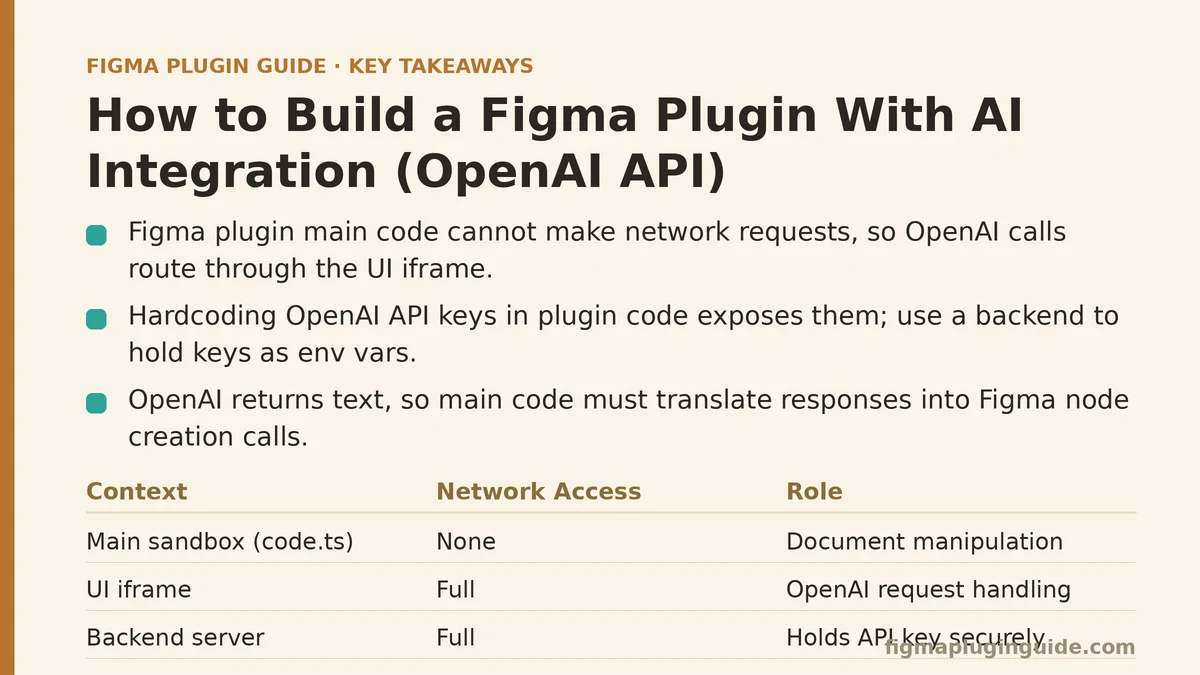
Reality: The code.ts file — the part of your plugin that runs in Figma’s sandboxed environment and has access to figma.currentPage, node creation, and everything else that touches the document — cannot make network requests. There’s no fetch, no XMLHttpRequest, nothing. This is a deliberate security boundary, not an oversight.
The workaround is the plugin’s UI panel, which renders in an iframe and behaves like a normal web page with full network access. Your architecture ends up looking like this: the main sandbox handles document manipulation, the UI iframe handles the OpenAI request, and figma.ui.postMessage() / window.onmessage pass data back and forth between the two. If you skip this split and try to call openai.chat.completions.create() from your main code, the build will compile fine and then fail silently or throw a runtime error the moment the request fires.
Myth: Storing Your OpenAI API Key in the Plugin Code Is Fine Since It’s “Just a Plugin”
Reality: Figma plugin code — including anything bundled into your UI iframe’s JavaScript — is inspectable by anyone who installs the plugin and opens dev tools. Hardcoding an API key directly into your bundle means shipping that key to every single user, and it will eventually end up scraped, leaked, or abused for calls that bill to your account.
The reliable pattern is routing all OpenAI calls through a lightweight backend server you control — even something as minimal as a single serverless function. Your plugin’s UI iframe sends the prompt and relevant context to your backend; your backend holds the actual API key as an environment variable, forwards the request to OpenAI, and returns the response. This adds a small amount of infrastructure, but it’s the difference between a key that’s invisible to end users and one that’s sitting in plaintext in a bundle they can unzip.
Myth: AI-Generated Content Can Be Applied to the Canvas Straight From the API Response
Reality: OpenAI returns text — usually structured as JSON if you’ve prompted it that way, but text nonetheless. Applying that to actual Figma nodes requires a translation layer that your main sandbox code handles, since only the sandbox can create text nodes, set fills, adjust auto-layout properties, or modify any part of the document.
The flow in practice: your UI iframe receives the OpenAI response, does whatever parsing or validation it needs, then posts a structured message back to the main code describing what to create or modify. The main code receives that message and executes the actual Figma API calls — figma.createText(), setting .characters, applying font styles, and so on. Skipping the parsing step is a common failure point, particularly when the model returns malformed JSON or wraps its response in explanatory text you didn’t ask for. Defensive parsing on the response before it ever reaches your document-manipulation code saves a lot of debugging time later.
Myth: Streaming Responses Work the Same Way They Would in a Standard Web App
Reality: Streaming from OpenAI’s API technically works inside the UI iframe, since it’s a normal browser-like context with fetch and stream support. But the practical value of streaming is muted in a Figma plugin context, because you generally can’t update canvas content mid-stream in any meaningful way without introducing flicker or partial, broken node states as text arrives token by token.
Most production plugins in this space wait for the complete response before sending anything to the main sandbox, then apply it in a single operation. Where streaming does earn its keep is in the UI itself — showing a live-updating preview of generated copy or a chat-style interface inside the iframe panel, before a “commit to canvas” action passes the finalized result over to the main code.
Myth: Rate Limits and Costs Are an Afterthought You Can Handle Later
Reality: A plugin distributed to even a modest user base can generate OpenAI API costs that scale unpredictably fast, since you have no control over how often any individual user triggers a request. Without guardrails, a single enthusiastic user running dozens of generation requests in a short session can produce a disproportionate share of your monthly bill.
Practical mitigations that matter from day one: request debouncing on the UI side so rapid repeated clicks don’t multiply calls, a request cap per user session enforced on your backend rather than trusted to the client, and a fallback error state in the UI that communicates rate-limit or cost-cap messages clearly rather than failing silently. None of this is exotic — it’s standard API-consuming-app hygiene — but it’s easy to defer past launch, and expensive when you do.
Myth: The Manifest File Needs Special AI-Related Permissions
Reality: There’s no dedicated “AI” permission category in a Figma plugin manifest. What you do need is the networkAccess field configured correctly, listing the domains your plugin is allowed to reach — your backend’s domain, and any CDN or asset domains you rely on. Omitting a domain from allowedDomains results in blocked requests that can look, at first glance, like an API authentication failure rather than a manifest misconfiguration.
Since OpenAI itself is never called directly from the plugin in the recommended architecture — your backend is the intermediary — you typically only need your own backend domain listed, not api.openai.com. That detail alone resolves a fair share of the “why is my request being blocked” confusion developers run into during initial setup.
A Quick Reference for the AI-Integrated Plugin Architecture
| Component | Runs In | Responsibility |
|---|---|---|
| Main sandbox code | Figma’s plugin sandbox | Canvas manipulation, node creation, document access |
| UI iframe | Embedded webview | User input, network requests, response display |
| Backend server | External hosting | Holds API key, forwards requests to OpenAI, enforces limits |
Manifest networkAccess | Config file | Whitelists your backend domain for outbound requests |
Where This Usually Trips People Up First
The single most common early mistake is treating a Figma plugin like a normal single-context web app, then discovering — usually after the build compiles cleanly — that the main sandbox simply refuses to make the request. Once the sandbox/iframe/backend split clicks, the rest of the implementation tends to move quickly, since the remaining work is standard prompt engineering and node manipulation rather than anything Figma-specific.
Which part of this architecture is giving you trouble right now — the sandbox-to-iframe messaging, the backend proxy setup, or applying AI output back to actual nodes? Describe where you’re stuck and I can walk through the specific piece that’s blocking you.
Related guides: Figma Plugin Development with TypeScript: Complete Setup, Figma Plugin License Key and Payment Integration Guide, and How to Build Your First Figma Plugin: A Beginner’s Guide.