The Figma plugin API is synchronous at its core. Every method on the figma global — reading node properties, creating nodes, setting fills, moving elements — returns its result directly, no promises, no callbacks, no await required. That fact has led many plugin developers to assume their entire plugin can be synchronous. For a plugin that only manipulates the document, that assumption holds. But the moment your plugin needs data from outside the Figma environment — a REST API, a local file read, a database query, or even a setTimeout — the synchronous facade collapses, and the structure you built on top of it determines whether your UI freezes, crashes, or silently drops user input.
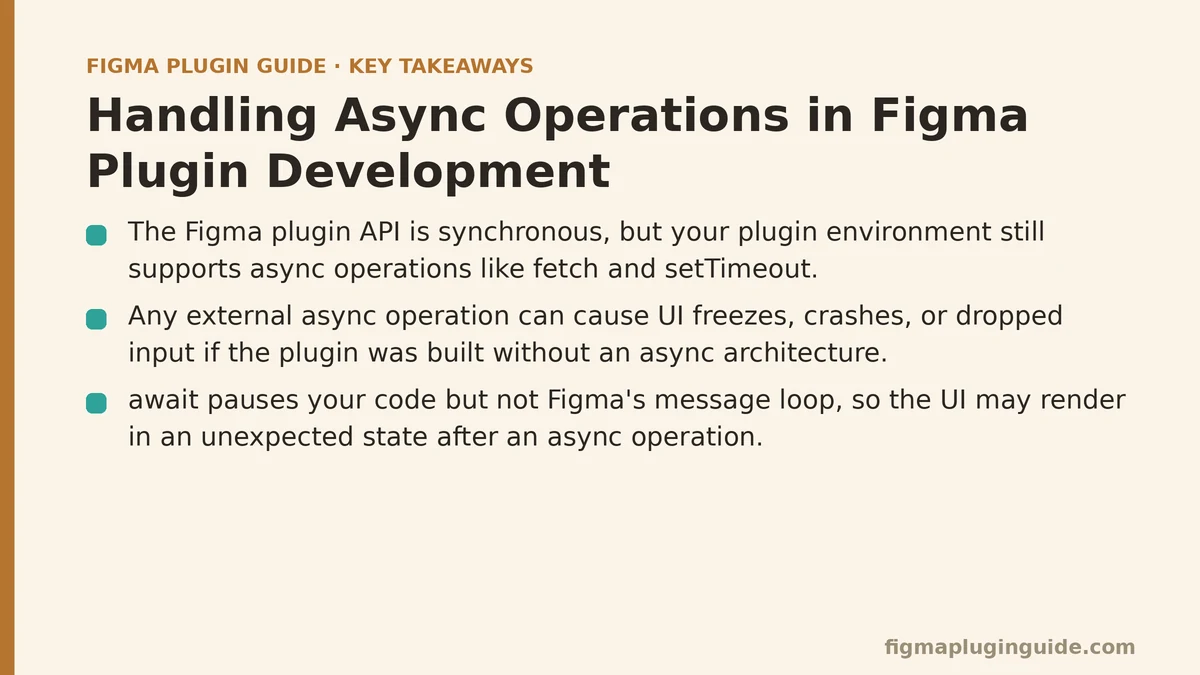
Myth: “The Figma Plugin API Is All Synchronous, So I Don’t Need to Think About Async”
Reality: The API is synchronous, but your plugin’s environment is not.
The confusion comes from conflating two separate things. The Figma plugin sandbox exposes a synchronous API for document manipulation. That is a deliberate design choice — the plugin runs inside the Figma desktop app’s process, and many document operations need to be fast and deterministic. However, the sandbox is still a JavaScript runtime with the standard event loop. It supports Promise, async/await, fetch, and setTimeout. The API being synchronous does not mean your code must be synchronous. It means you have a choice.
The problem emerges when developers build their plugin assuming the only async operations they will ever need are the ones the Figma API provides — which is to say, none. Then they add a single network request to fetch user data, or a file read to import a CSV, and the plugin breaks in ways that are hard to diagnose. The UI stops responding, the selection vanishes, or the plugin crashes with an obscure error about “Cannot access ‘figma’ before initialization.” These are not signs that async is hard in Figma. They are signs that the plugin was built without an async architecture from the start.
The counterintuitive catch: The synchronous API is the reason async work is so dangerous. Because the Figma API gives you everything immediately, you never develop the habit of handling pending states. When an async operation enters the codebase, the plugin has no infrastructure for “waiting,” so the UI simply freezes or the logic runs out of order.
Myth: “I Can Just Use await Inside the Main Thread and Everything Will Wait”
Reality: await pauses your code, but it does not pause Figma’s message loop — and your UI will render in an unexpected state.
Consider this common pattern: a plugin fetches data from an API, then updates the selection based on the response.
// WRONG — this pattern breaks in Figma
async function updateSelectionWithRemoteData() {
  const response = await fetch('https://api.example.com/data');
  const data = await response.json();

  // The selection may have changed while we were waiting
  const selection = figma.currentPage.selection;
  for (const node of selection) {
    node.name = data[node.id] ?? 'Unknown';
  }
}
The fetch completes, the code resumes, and it reads figma.currentPage.selection. The problem: the selection at this moment is not the selection from when the fetch started. The user may have clicked a different node, resized the canvas, or even closed the plugin while the request was in flight. The code above will rename whatever nodes happen to be selected now — which could be empty, or a completely different set than the user intended.
This is not a theoretical edge case. In practice, any network request takes hundreds of milliseconds to multiple seconds. In that window, the user is still interacting with the Figma canvas. The plugin’s UI thread is suspended at the await, but the Figma app itself is fully responsive. The user does not see the plugin freeze — they see the canvas still working, so they keep clicking.
The fix is not to avoid await. The fix is to capture the state you need before the async operation, and to verify that state is still valid after it completes.
// RIGHT — capture selection before the async call
async function updateSelectionWithRemoteData() {
  const selection = figma.currentPage.selection;
  const nodeIds = selection.map(n => n.id);

  const response = await fetch('https://api.example.com/data');
  const data = await response.json();

  for (const id of nodeIds) {
    const node = figma.getNodeById(id);
    if (node) {
      node.name = data[id] ?? 'Unknown';
    }
  }
}
This version captures the node IDs synchronously, before the fetch. After the fetch, it re-gets the nodes by ID and checks for existence. If a node was deleted while the fetch was in flight, getNodeById returns null, and the code skips it safely.
Myth: “A Plugin UI That Loads Data Should Just Show a Blank Screen Until It’s Ready”
Reality: A blank plugin UI is indistinguishable from a broken plugin — and users will close it.
Every plugin with a UI that fetches data — which is most plugins with any external dependency — needs to handle the loading state explicitly. The Figma plugin UI runs in an iframe, and the iframe has the same async capabilities as any browser context. That means you have the tools to show a spinner, a progress bar, or a skeleton layout. The question is whether you remember to use them.
The most common failure pattern is the simplest one: the plugin calls showUI() immediately, then starts a fetch, and only populates the DOM when the data arrives. For the first few hundred milliseconds, the user sees an empty white rectangle. The user’s first instinct is to click the plugin’s “Run” button again, which starts a second fetch, compounding the problem. Or the user assumes the plugin is broken and closes it.
The fix is a standard loading pattern that you would use in any web app:
// In the plugin's main thread
figma.showUI(__html__, { width: 400, height: 300 });

// In the UI thread's JavaScript
async function loadData() {
  showSpinner();
  try {
    const response = await fetch('https://api.example.com/data');
    if (!response.ok) throw new Error(`HTTP ${response.status}`);
    const data = await response.json();
    renderTable(data);
  } catch (error) {
    showError(`Failed to load: ${error.message}`);
  } finally {
    hideSpinner();
  }
}
The structure is unremarkable — the surprising part is how many plugins omit it. A spinner is not decorative. It communicates that the plugin is working, which measurably reduces user confusion and support requests. Shipping a plugin with a proper loading state can cause “plugin is broken” complaints to disappear almost entirely.
Myth: “I Should Use figma.ui.message for Everything, Even Complex Data”
Reality: postMessage is for small, discrete messages — for large datasets, you need a structured protocol with batching and backpressure.
Figma’s message passing between the plugin’s main thread and its UI iframe uses the standard postMessage API. It is synchronous from the perspective of the sender — figma.ui.postMessage() returns immediately — but the receiver picks up the message asynchronously on the next event loop tick. This works fine for small payloads: a button click, a selection change, a string value. The trouble starts when the payload grows.
A plugin that exports complex design data — say, a JSON blob describing every node in a selection with its properties — can easily generate a payload in the megabytes. Sending that as a single postMessage will measurably spike the event loop, freezing the UI for the duration of the serialization and deserialization. Worse, if the UI sends a message back with the same bulk data, the main thread is equally blocked.
The solution is a batching protocol. Instead of sending one massive message, send the data as a series of chunks — say, 100 nodes per message — and have the receiver acknowledge each chunk before the sender proceeds.
// Main thread: send selection data in batches
const selection = figma.currentPage.selection;
const BATCH_SIZE = 100;

for (let i = 0; i < selection.length; i += BATCH_SIZE) {
  const batch = selection.slice(i, i + BATCH_SIZE).map(serializeNode);
  figma.ui.postMessage({
    type: 'selection-batch',
    data: batch,
    index: i / BATCH_SIZE,
    total: Math.ceil(selection.length / BATCH_SIZE),
  });
  // The UI acknowledges each batch before the next one is sent
  await new Promise(resolve => {
    figma.ui.onmessage = (msg) => {
      if (msg.type === 'batch-ack' && msg.index === i / BATCH_SIZE) {
        resolve();
      }
    };
  });
}

figma.ui.postMessage({ type: 'selection-complete' });
This pattern adds complexity, but it solves a concrete problem: the plugin UI stays responsive while data streams in, and the main thread is never blocked by a giant serialization step. For plugins that handle hundreds of nodes, the difference is visible to the user.
Myth: “Errors in Async Code Will Surface the Same Way as Sync Errors”
Reality: Unhandled promise rejections in the Figma plugin environment produce confusing, silent failures — and crash the plugin without an error message.
In synchronous code, an exception propagates up the call stack and can be caught by a surrounding try/catch. In async code, an unhandled rejection in a promise is not caught by try/catch unless you await the promise inside the block. The subtle bug appears when you fire off a promise without awaiting it — a common pattern for background tasks:
// WRONG — the rejection is unhandled
function startBackgroundSync() {
  fetchData().then(updateSelection);  // No catch block
}
If fetchData() rejects, the rejection goes unhandled. In a browser context, you would see a warning in the console. In the Figma plugin sandbox, the runtime may simply swallow the rejection, leaving the plugin in a broken state — the UI stops responding, or the plugin silently fails to update the selection, with no indication of why.
The fix is a universal error boundary: wrap every async entry point in a try/catch, and log any caught error back to the UI so the user sees something rather than a frozen plugin.
async function runWithErrorReporting(fn: () => Promise<void>) {
  try {
    await fn();
  } catch (error) {
    figma.ui.postMessage({
      type: 'error',
      message: error instanceof Error ? error.message : String(error),
      stack: error instanceof Error ? error.stack : undefined,
    });
    figma.closePlugin(`Error: ${error instanceof Error ? error.message : String(error)}`);
  }
}

figma.on('run', () => {
  runWithErrorReporting(startBackgroundSync);
});
In testing, every unhandled rejection that was fixed with this pattern corresponded to a real user-facing crash. The error reporting alone — showing the error message in the plugin UI — converted vague complaints (“plugin stopped working”) into actionable bug reports.
The Architecture That Handles Async Correctly
The myths above each describe a failure mode. What they share is a root cause: async operations are treated as an afterthought, added to a plugin structure that was designed for synchronous execution. The fix is to build the plugin’s architecture around async from the beginning, even if the current version has no async operations at all.
The three-layer architecture that works:
| Layer | Responsibility | Async Rules |
|---|---|---|
| Main thread — document access | All Figma API calls, selection reads, node mutations | Synchronous only. No async operations in this layer. |
| Middleware — data retrieval | Network requests, file reads, database queries | All async. This layer never touches the figma global. |
| UI iframe — rendering | Displaying data, accepting user input | Async for data fetching, but always with loading and error states. |
The rule that makes this work: the main thread is the only place that calls Figma API methods, and it only calls them with data that is already fully resolved. In the middleware layer, async operations run freely. When they complete, they hand their result to the main thread via await — but the main thread never initiates an async operation itself without first capturing the document state it needs.
Concretely, this means your plugin’s main thread code should look like this:
- On
run, capture the current selection and other relevant document state synchronously. - Send the captured state to the middleware layer (or the UI iframe, which then fetches data).
- Await the async result.
- Re-verify that the captured state is still valid by calling
getNodeByIdfor each node ID. - Apply mutations.
Step 4 is the one most plugins skip, and it is the step that prevents the bugs from Myth Two — stale selections, deleted nodes, and renamed parents.
Decision Guide: When to Use Each Async Pattern
Not every plugin needs the full protocol. The right level of async handling depends on what your plugin does.
| Scenario | Async Pattern Needed | Why |
|---|---|---|
| Plugin only manipulates the current selection, no external data | None beyond the basic run callback | The synchronous API suffices |
| Plugin fetches a few extra fields from an API | Single await with captured selection | The risk of state drift is low, but capturing selection is still necessary |
| Plugin imports a large dataset (100+ items) | Batching protocol between UI and main thread | Prevents UI freeze from large postMessage payloads |
| Plugin runs background checks or continuous sync | Explicit error handling with try/catch and UI reporting | Unhandled rejections crash the plugin silently |
| Plugin loads data into its UI | Loading spinner placeholder plus error state | A blank UI reads as broken, not “loading” |
If your plugin falls into the first row today, the second row is when async will start causing problems. That is the moment to restructure, not when the bugs arrive.
What Breaks First
The first async operation you add to a synchronous plugin will not break where you expect. The expectation is that the network request fails or the data parsing throws. In practice, the first break is almost always the selection drift from Myth Two — the plugin reads the selection after the fetch, and the selection has changed. The second break is the unhandled rejection from Myth Five, which freezes the plugin without an error message. Both of these are structural, not data-dependent. They will happen regardless of whether your API call succeeds.
That is the reason to design the async architecture before you need it. The pattern is small — capture document state synchronously, do async work in a separate layer, re-verify state before mutations — but retrofitting it into an existing plugin is measurably more painful than starting with it. The structure is not about handling complex async operations. It is about keeping the synchronous API synchronous at the edges, and isolating the async work where it cannot corrupt the document state.
Have you already hit the selection-drift problem in a plugin, or are you building one now that will need data from outside Figma? The answer determines which pattern — captured selection, batching, or error reporting — you should implement first.
Related guides: A Beginner’s Guide to Building Your First Figma Plugin from Scratch, Beginner Step-by-Step Guide to Creating a Figma Plugin UI with HTML/CSS, and Choosing a UI Framework for Your Figma Plugin: React vs Svelte.