Say you are trying to keep a design system’s documentation next to the components it describes, but the canvas and the docs site have drifted apart again — the token names in Figma no longer match the published table, and nobody notices until an engineer ships the wrong spacing value. A Figma widget is one way to close that gap: a small, canvas-native element that renders live documentation, the same way a component renders a button.
This tutorial walks through building one, organized as a troubleshooting checklist. Each section names the symptom you will encounter, the cause behind it, and the fix. That structure mirrors how the work unfolds: you rarely build a widget front to back without hitting at least a few of these, and knowing the symptom up front saves a debugging session.
Before You Start: Widgets Are Not Plugins
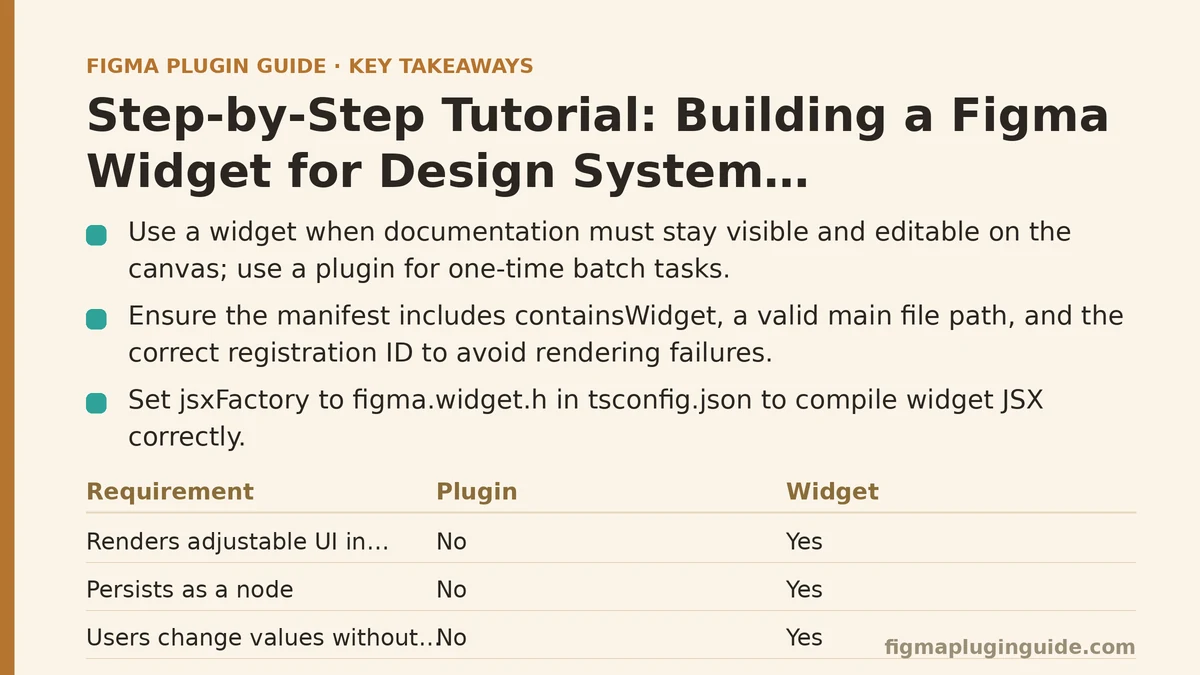
The first decision is whether a widget is the right primitive at all. A plugin runs when a user explicitly launches it and then terminates; it can create nodes, but it cannot render persistent UI in the canvas. A widget lives as a node the user places, persists across sessions, re-renders when its properties change, and can be duplicated onto other pages and files.
| Requirement | Plugin | Widget |
|---|---|---|
| Renders adjustable UI in the canvas | No | Yes |
| Persists as a node in the file | No (creates nodes, then exits) | Yes |
| Users can change values without relaunching | No | Yes (via properties) |
| Interactive controls (buttons, inputs) | Possible, but transient | Yes, via useSyncedState |
| Good fit for always-visible documentation | Poor | Strong |
When NOT to use a widget: if you only need to generate a batch of frames or rename layers one time, a plugin is lighter and does not leave a node behind. Widgets earn their place when the documentation needs to stay visible and editable on the canvas.
Symptom: Nothing Renders — the Manifest Is Wrong
Cause: Widgets and plugins use different manifest fields, and the scaffolding from a plugin tutorial will not boot as a widget.
Fix: Start with the correct manifest. The id field must come from Figma’s widget registration flow, and containsWidget must be set. Replace the placeholder values, not leave them in.
{
  "name": "Design System Doc Widget",
  "id": "000000000000000000",
  "api": "1.0.0",
  "main": "dist/code.js",
  "editorType": ["figma", "figjam"],
  "containsWidget": true,
  "widgetApi": "1.0.0"
}
The ui field is unnecessary unless you are showing a panel. Widgets render directly from main; a missing ui file in the manifest is fine, but pointing at one that does not exist will fail the load. If nothing renders at all, check these three things in order: containsWidget is present, the main file exists at the path given, and the registration ID matches.
Symptom: TypeScript Cannot Find the Widget Functions
Cause: The figma.widget namespace is available only when the compiler is told about the widget API types.
Fix: Import from the widget namespace and keep the code file typed. A minimal entry point that renders an empty frame is enough to confirm the toolchain works before adding documentation logic.
// code.ts
const { widget } = figma;
const { AutoLayout, Text } = widget;

function DesignSystemDoc() {
  return (
    <AutoLayout
      direction="vertical"
      padding={16}
      spacing={8}
      cornerRadius={8}
      fill="#FFFFFF"
      stroke="#E5E7EB"
      strokeWidth={1}
    >
      <Text fontSize={14} fontWeight={600}>
        Design System — Tokens
      </Text>
    </AutoLayout>
  );
}

widget.register(DesignSystemDoc);
If the import resolves but the JSX does not compile, verify that jsxFactory is set to figma.widget.h in tsconfig.json. A common incorrect setup is leaving the React default factory in place, which compiles without error but fails at runtime because React is not available in the widget sandbox.
Symptom: Documentation Is Hardcoded and Goes Stale
Cause: You rendered static text, so the widget cannot reflect what the team uses.
Fix: Model the documentation data as synced state and expose editing through widget properties. useSyncedState persists the value into the document, while usePropertyMenu gives users a visible menu to change it.
const { widget } = figma;
const { AutoLayout, Text, useSyncedState, usePropertyMenu } = widget;

type Token = { name: string; value: string; category: string };

function DesignSystemDoc() {
  const [tokens, setTokens] = useSyncedState<Token[]>("tokens", [
    { name: "space-md", value: "16px", category: "Spacing" },
    { name: "radius-sm", value: "4px", category: "Radius" },
  ]);

  usePropertyMenu(
    [
      {
        itemType: "action",
        propertyName: "add-token",
        tooltip: "Add a token",
      },
    ],
    ({ propertyName }) => {
      if (propertyName === "add-token") {
        const next = [
          ...tokens,
          { name: "new-token", value: "0px", category: "Spacing" },
        ];
        setTokens(next);
      }
    }
  );

  return (
    <AutoLayout direction="vertical" padding={16} spacing={6}>
      {tokens.map((t) => (
        <AutoLayout key={t.name} spacing={12}>
          <Text fontSize={12} fontWeight={600} width={100}>
            {t.name}
          </Text>
          <Text fontSize={12} fill="#6B7280">
            {t.value}
          </Text>
        </AutoLayout>
      ))}
    </AutoLayout>
  );
}
A design-system documentation widget that hardcodes values is a picture of the design system, not a representation of it. Synced state is what turns the widget into a live reference.
Symptom: Two Widget Instances Show Different Data
Cause: Scoping. useSyncedState is per-instance by default; if you expected a shared value, the widget does not behave that way.
Fix: Choose a scope deliberately:
- Per-instance (
useSyncedState) — each widget on the canvas can document a different token group. Good for a widget placed next to each component set. - Shared (
useSyncedStatewith a fixed key plus a shared node pattern) — useful when every instance should reflect one canonical list.
Per-instance is the safer default for documentation because it lets one widget sit beside the buttons section and another beside the spacing section, each showing the relevant tokens.
Symptom: The Widget Renders but Looks Broken in the File
Cause: Figma interprets widget sizing differently from a normal frame; auto-layout plus fixed dimensions often fights the widget’s own measure pass.
Fix: Prefer AutoLayout with content-derived sizing over fixed width/height. If a widget must respect a fixed size, use width: "fill-parent" on the outer container and let inner elements size themselves. Avoid absolute positioning inside a widget unless you also supply a fallback size; absolute positioning without a measurement path produces a zero-size or clipped render.
Symptom: Types in useSyncedState Do Not Persist
Cause: useSyncedState accepts a limited set of serializable values. Nested class instances and functions are dropped silently.
Fix: Keep state to plain objects, arrays, strings, numbers, and booleans. If you build a token object with methods, serialize it to a plain shape before saving:
// do not store a class instance
setTokens([{ ...token, format: token.format.toString() }]);
If you need richer validation, check the stored data on read rather than trusting the shape — a missing field after a widget version change is a common cause of a blank render.
Verify the Build End to End
Once the widget renders with sample tokens, run the full loop: change a value through the property menu, confirm the canvas updates, then reload the file and confirm the state persisted. A working loop looks like this:
npm run buildproduces a freshdist/code.js.- Import the manifest into Figma via Plugins → Development → Import plugin from manifest.
- Insert the widget on a page.
- Use the property menu to add a token.
- Close and reopen the file — the added token should still be there.
If step 5 fails, the state was not written through a synced state setter, or the widget was placed in a read-only context (for example, a published library file without edit permissions).
Troubleshooting Reference
| Symptom | Likely Cause | Fix |
|---|---|---|
| Widget does not appear in the insert menu | containsWidget missing or id invalid | Correct the manifest; re-import |
| Blank render on insertion | Render function throws before first paint | Add try/catch around data mapping; verify default state |
| Text does not update | State setter is not called or uses a stale copy | Use the setter form setTokens(prev => ...) |
| Changes vanish on reload | Non-serializable value in state | Serialize to plain JSON-compatible objects |
| Widget looks clipped | Fixed sizing fighting auto-layout | Remove fixed dimensions; use fill-parent |
| Two instances diverge unexpectedly | Per-instance scope | Use shared-key state if one canonical list is intended |
Closing Checklist
Before shipping the widget into a shared file, confirm each item:
- The manifest includes
containsWidgetand a registered widget ID. - Default synced state is valid and non-empty, so first paint succeeds.
- All state values are JSON-serializable primitives, arrays, or plain objects.
- Sizing uses
AutoLayoutorfill-parentrather than hardcoded dimensions. - The property menu changes are tested by reloading the file, not just in the current session.
- A version string is stored in state so future schema changes can be detected on read.
Which of the troubleshooting rows above matches the failure you are seeing now? Fixing that single row first is usually enough to get the widget rendering reliably before you extend it to cover component props, not just tokens.
Related guides: Building a CI/CD Pipeline for Figma Plugins with Automated Testing, Best Figma Plugins for Design System Management, and A Beginner’s Guide to Building Your First Figma Plugin from Scratch.